

Finding the best photo editing apps for Android can completely transform your mobile photography, whether you’re enhancing casual snapshots or creating professional-quality images. Today’s editing apps offer powerful AI tools, advanced filters, and precise adjustments directly from your smartphone. With so many options available, choosing the right one depends on your editing style and creative needs. This guide highlights the top apps that deliver excellent performance, features, and ease of use.
What Makes a Great Photo Editing App?
Before diving into individual applications, it is crucial to understand the pillars of a top-tier mobile imaging workflow. The landscape of mobile photo editing apps has evolved beyond simple crop tools and vintage filters. Today, a capable app must handle advanced digital asset management and complex pixel manipulation. Here are the non-negotiable features that define a great best Android photo editor:
- AI-Powered Editing Tools: Artificial intelligence has redefined mobile workflows. In 2026, top-tier apps include features like generative fill, precise subject isolation, and automated object removal that can cleanly erase distractions with context-aware blending.
- RAW Photo Support: For serious creators, a RAW photo editor Android application is mandatory. Shooting in RAW retains uncompressed data from the camera sensor, allowing you to recover blown-out highlights or deep shadows without introducing nasty digital artifacts or pixelation.
- Granular Color Correction & Grading: Look for apps that provide individual HSL (Hue, Saturation, Luminance) sliders, color wheels, and curves (RGB and individual color channels) to execute cinematic color timing.
- Exposure and Contrast Adjustments: The fundamentals must be flawless. Precise control over highlights, shadows, whites, blacks, and overall contrast ensures you can balance the image’s dynamic range perfectly.
- Advanced Selection (Layers & Masking): The ability to isolate the sky, the background, or the subject allows for localized adjustments. Great apps let you apply exposure or color changes exclusively to targeted areas rather than forcing global adjustments on the entire frame.
- Cloud Synchronization: A modern workflow requires flexibility. Seamlessly syncing your mobile edits with a desktop or tablet ensures you can start an edit on the train and polish it later on a color-accurate monitor.
- High-Quality Export Engines: An editor is only as good as its output. The app must allow you to export files in lossless formats like TIFF or uncompressed PNG, while also offering customizable JPEG compression and metadata retention.
Best Photo Editing Apps for Android
Whether you want to execute a pixel-perfect commercial retouch or design a viral social media graphic on the fly, here is an in-depth breakdown of the ultimate Android photography apps available this year.
1. Adobe Lightroom
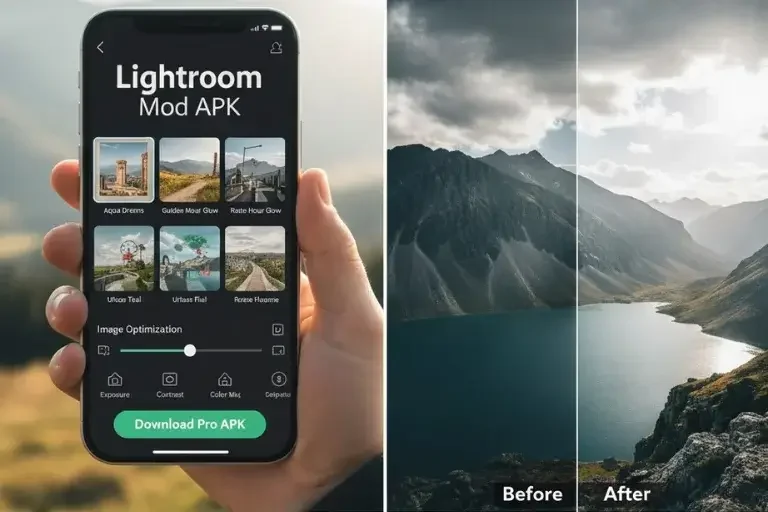
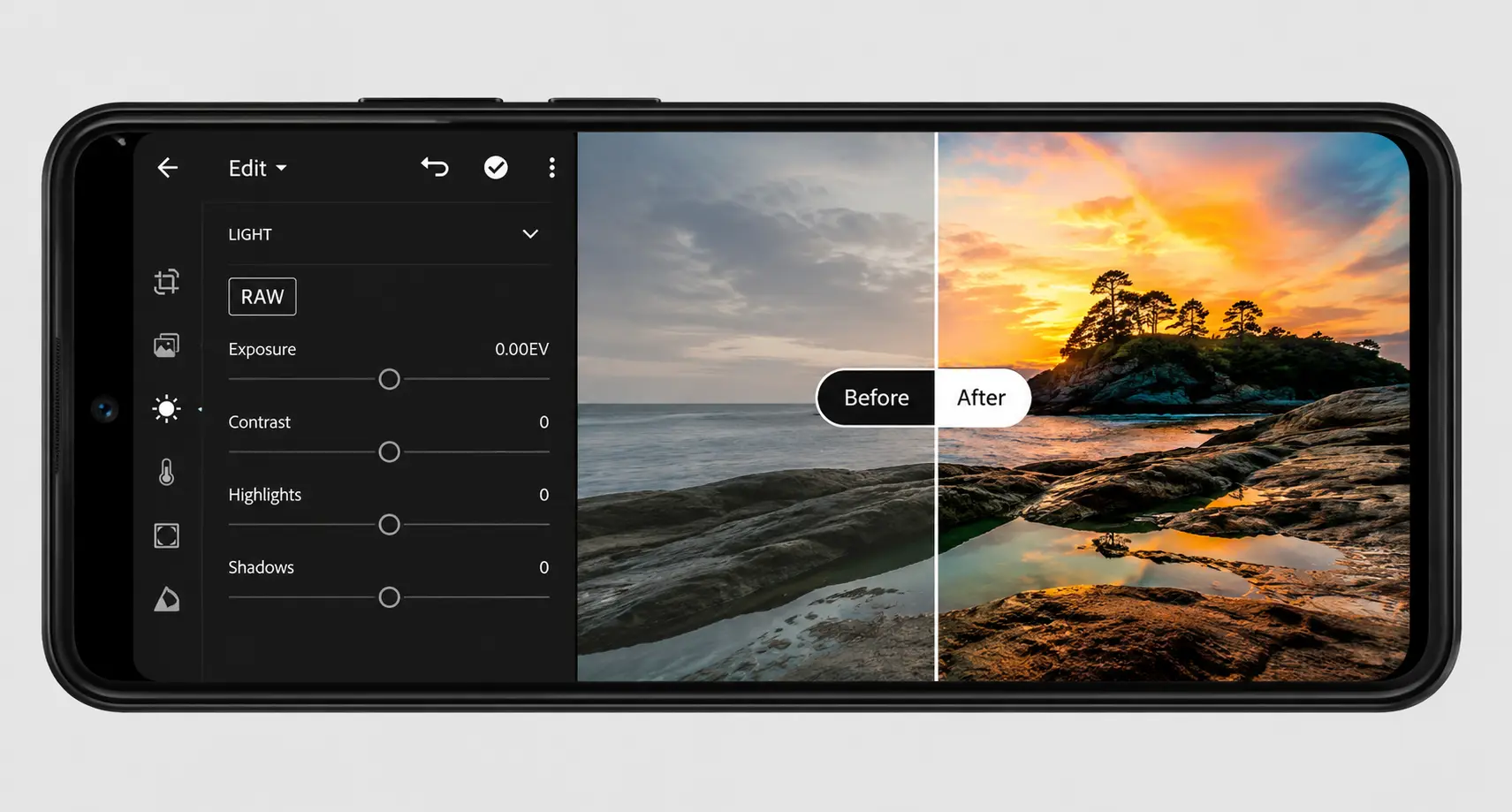
Adobe Lightroom remains the gold standard for photographers who demand an uncompromising, desktop-grade experience on a mobile interface. It serves as both a powerhouse raw editor and a highly organized photo library cataloguer.
Lightroom Mobile brings Adobe’s industry-leading camera profiles and processing algorithms straight to your pocket. Its local masking engine uses cutting-edge machine learning to automatically detect human subjects, sky gradients, or specific objects with a single tap. The app’s color grading wheels afford users the same precise control over highlights, midtones, and shadows found in high-end cinematography suites, making it an unrivaled choice for professional-grade color timing.
- Key Features: Advanced RAW photo editor Android architecture; AI-powered Generative Remove for seamless object deletion; local masking profiles; cross-platform cloud syncing with Lightroom Desktop and Classic; custom preset importing/exporting.
- Pros: Unmatched color management; non-destructive editing workflow; exceptional organizational tools with folders and AI tagging.
- Cons: Requires a recurring premium subscription for cloud sync and advanced AI masking features; slight learning curve for total novices.
- Free vs. Premium: The free tier includes excellent basic exposure and color adjustments, along with a built-in pro camera mode. The Premium tier unlocks AI masking, Generative Remove, geometry correction, and Creative Cloud synchronization.
- Best For: Professional photographers, serious enthusiasts, and anyone who shoots in RAW and requires a unified mobile-to-desktop workflow.
2. Snapseed
Snapseed, developed by Google, has enjoyed a massive resurgence following its highly anticipated major architecture overhaul. It remains the ultimate champion for creators who demand professional tools without financial barriers.
Operating entirely for free with zero advertisements, Snapseed delivers a masterclass in gesture-based user experience. By sliding vertically to choose a tool parameter and horizontally to adjust the intensity, editing feels organic and incredibly fast. The recent software iterations introduced upgraded film stock emulations alongside smarter masking, ensuring it holds its ground against subscription-based rivals. Its “Expand” tool uses intelligent algorithms to stretch image borders, making it an essential utility tool.
- Key Features: Completely non-destructive “Stacks” workflow that lets you re-adjust previous edits at any time; precise Selective tool for local luminance tuning; Control Points; pro Curves engine; newly updated analog film presets and built-in Snapseed Camera with real-time style previews.
- Pros: 100% free with absolutely no hidden paywalls, ads, or watermarks; includes pro tools like curves, white balance adjustments, and RAW capabilities.
- Cons: Lacks cloud sync functionality; does not feature advanced desktop-style layer compositing.
- Free vs. Premium: There is no premium version. Every feature is entirely free.
- Best For: Beginners, intermediate hobbyists, and budget-conscious photographers looking for an elite, ad-free free photo editing apps Android experience.
3. PicsArt Photo
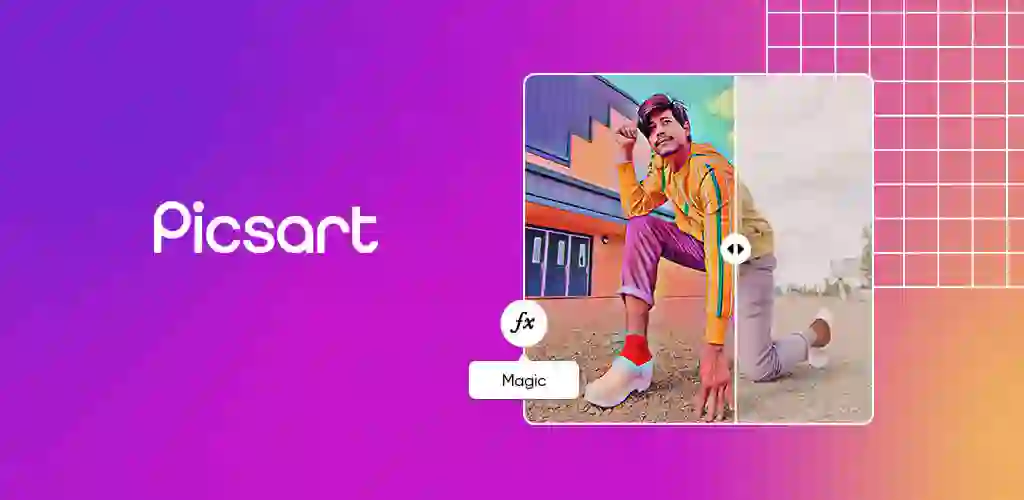
If your photography goals involve bold artistic statements, digital collages, or multimedia manipulation, Picsart is a robust creative playground that blurs the line between traditional editing and graphic design.
Picsart is anchored by its suite of generative AI photo editing app Android capabilities. Features like AI Expand allow users to naturally change an image’s aspect ratio by generating matching contextual backgrounds. The app boasts an enormous library of community-created stickers, typography overlays, and text styles. It acts as a comprehensive vector design station and photo editor rolled into one, making it incredibly easy to create stylized, eye-catching imagery.
- Key Features: AI-assisted object swap and generative text-to-image creation; advanced background eraser; multi-layer editing engine; double exposure tools; expansive library of custom stickers, borders, and creative filters.
- Pros: Extremely versatile for creative manipulations; immense asset ecosystem for social media design; intuitive for rapid, playful edits.
- Cons: The free version is heavily restricted by advertisements and constant pop-up prompts to upgrade; can feel bloated if you only want basic photo tuning.
- Free vs. Premium: The free version provides standard filters and basic editing tools but restricts daily exports and locks premium AI tools. The Gold subscription unlocks the complete asset catalog, high-resolution processing, and advanced AI features.
- Best For: Social media creators, digital artists, influencers, and anyone who loves making stickers, memes, and multi-layered photo collages.
4. Adobe Photoshop Express
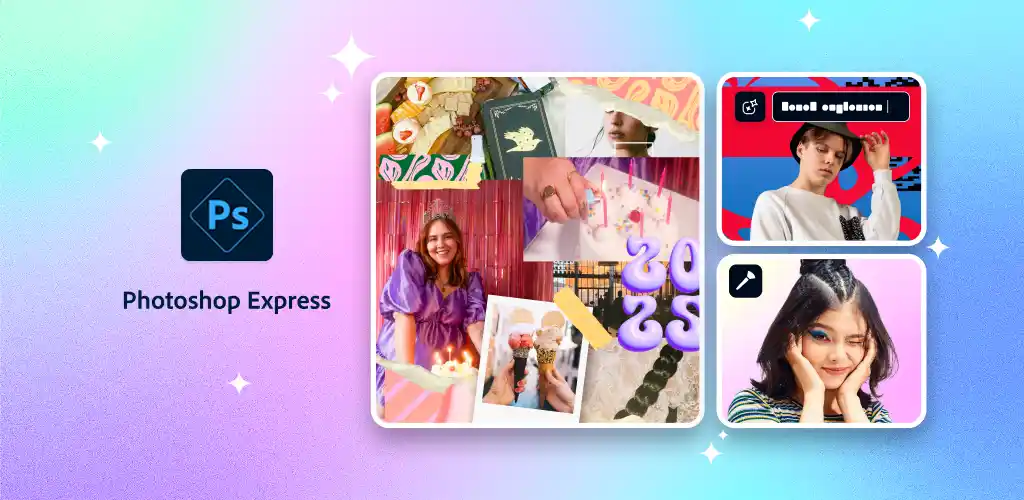
Photoshop Express acts as the quick-striking sibling to Lightroom. It is explicitly designed for users who need Adobe’s world-class correction algorithms boiled down into rapid, one-touch solutions.
Rather than managing vast photo libraries or fine-tuning complex curves for hours, Photoshop Express focuses on immediacy. It features a highly intelligent “Auto-Fix” engine that analyzes exposure, white balance, and contrast errors instantly. The app excels at quick-turnaround portrait retouching, featuring automatic blemish removal, red-eye reduction, and smart perspective correction tools that fix crooked lens distortion in seconds.
- Key Features: One-tap intelligent enhancement presets; advanced noise reduction engines for low-light images; automatic blemish and spot healing; split-tone filters; built-in collage layouts.
- Pros: Fast and streamlined interface; exceptional automated correction tools; syncs perfectly with Creative Cloud libraries.
- Cons: Lacks deep, manual local masking brush control; not intended for heavy RAW manipulation.
- Free vs. Premium: Free for basic quick fixes when logged in with a free Adobe account. Premium membership unlocks advanced spot healing, raw file imports, and sophisticated noise reduction filters.
- Best For: Casual photographers, corporate professionals needing swift mobile adjustments, and existing Creative Cloud users looking for quick fixes.
5. Canva
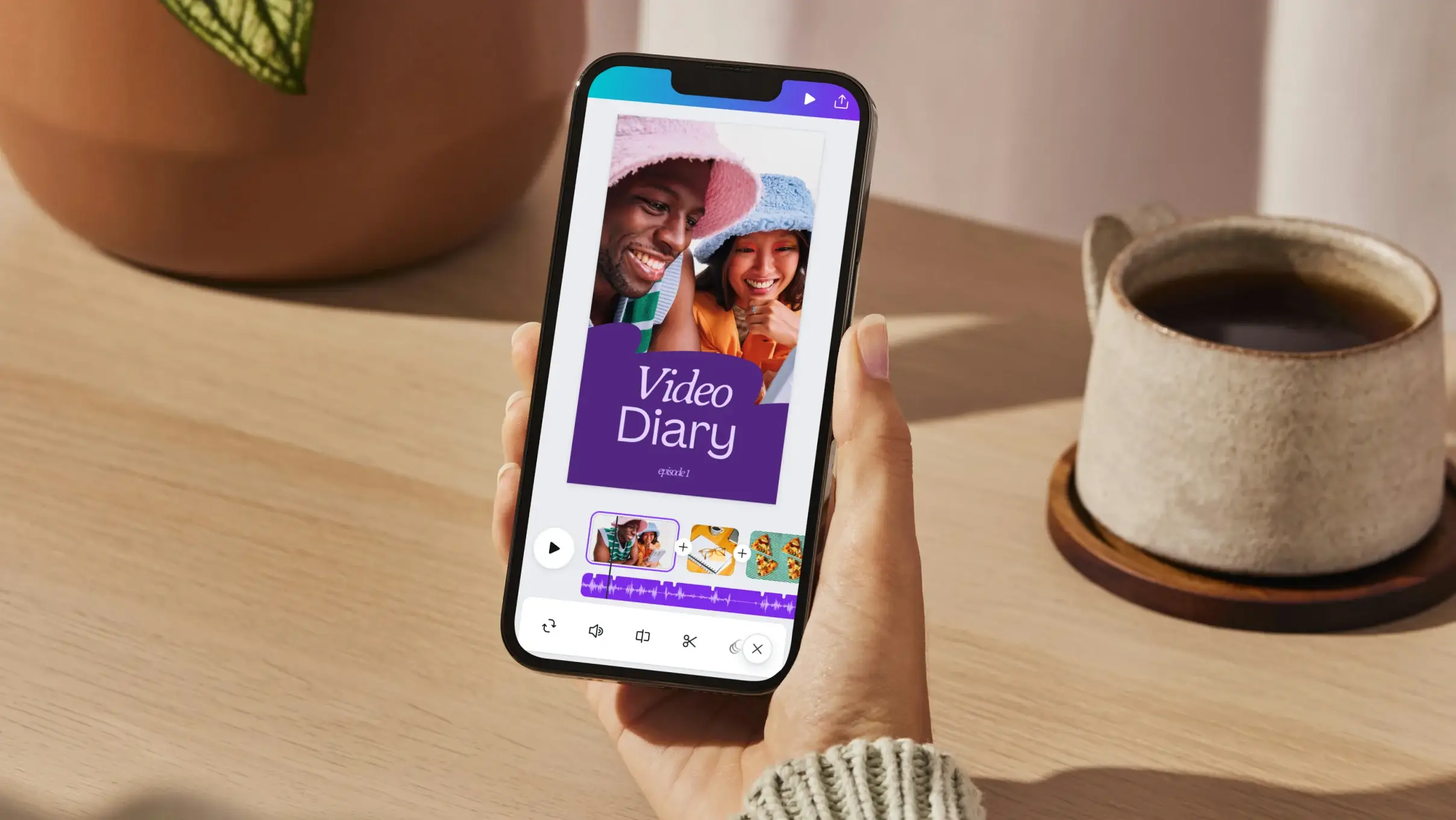
Canva approach to mobile imaging is unique. It frames your photograph not just as a standalone artwork, but as the foundation for broader visual communication, branding, and graphic design templates.
Canva integrates a highly functional photo editor directly into a world-class graphic design environment. If you need to transform a product shot into a polished marketing flyer, an Instagram Story, or a YouTube thumbnail, Canva is unparalleled. Its automatic background removal tool works flawlessly with a single tap, allowing you to instantly sandwich text layers, vector graphics, and brand logos behind or around your subject.
- Key Features: Million-plus library of professional templates; one-click AI background eraser; Magic Edit for swapping elements using text prompts; unified typography tools; instant social media aspect ratio resizing.
- Pros: Flawless integration of photo processing and graphic composition; cloud-saved brand kits for businesses; incredibly user-friendly drag-and-drop mechanics.
- Cons: Lacks technical photography tools like histograms, HSL channels, and chromatic aberration correction; requires an active internet connection to access the asset library.
- Free vs. Premium: The free tier is surprisingly robust, offering thousands of templates and basic editor tools. Canva Pro unlocks the premium brand kits, the elite background eraser, and millions of premium stock assets.
- Best For: Small business owners, digital marketers, social media managers, and entrepreneurs who need to combine photo editing with graphic layouts.
6. PhotoDirector
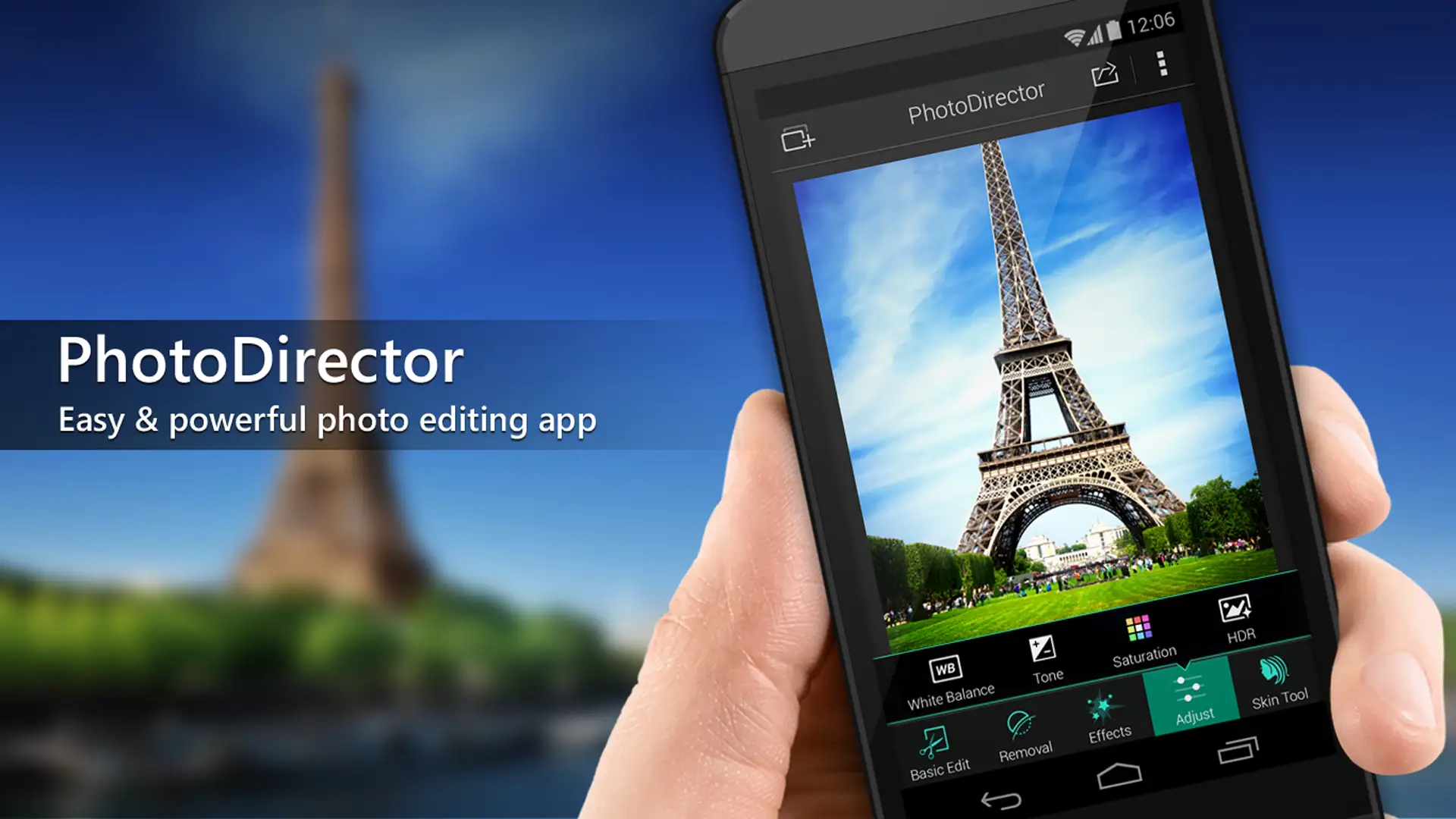
PhotoDirector combines traditional photo adjustments with advanced AI effects, delivering a versatile toolset that excels at both subtle corrective enhancements and dramatic image transformations.
The standout feature of PhotoDirector is its specialized AI toolkit. It boasts one of the most reliable content-aware object removal systems on mobile, letting you swipe away unwanted tourists or power lines seamlessly. Additionally, its AI Sky Replacement tool can instantly swap out a dreary, overexposed sky for a dramatic sunset or a clear blue horizon, automatically adjusting the overall color temperature and lighting of your foreground to match the new sky seamlessly.
- Key Features: AI Sky Replacement with automatic relighting; advanced context-aware object removal; face and body shaping tools; photo animation effects (moving clouds/water); basic layer editing capabilities.
- Pros: Powerful AI-driven enhancements that save immense manual work; excellent portrait smoothing tools; creative animation features for dynamic imagery.
- Cons: The user interface can feel slightly cluttered with promotional content on the free tier; heavy AI processing can take a toll on older processors.
- Free vs. Premium: The free download contains standard sliders and basic AI tools with ad support. The Premium subscription unlocks unlimited AI object removal, premium sky presets, audio-to-photo animation, and removes all watermarks.
- Best For: Intermediate photographers who love dramatic AI enhancements, seamless object removal, and quick portrait adjustments without needing advanced editing skills.
Best Free Photo Editing Apps for Android
If you prefer not to pay for a subscription, navigating the free landscape requires knowing exactly what compromises you will face. Many apps list themselves as “free” in the Google Play Store, only to restrict high-resolution exporting or append intrusive watermarks onto your final images.
When comparing the top free alternatives, Snapseed stands completely uncontested as the absolute purest experience. Because it is backed entirely by Google, it contains no ads, no export restrictions, and preserves full-resolution image quality. It grants access to sophisticated masking, raw capabilities, and curves without asking for a dime.
Conversely, apps like Picsart and Canva offer excellent free tiers, but operate under structural limits. For example, Picsart restricts free users to a minimal set of basic filters and limits the number of times you can save edits per day, while frequently prompting you to purchase premium packages.
Canva’s free tier is generous with templates but locks its best features such as the revolutionary one-click background remover behind its premium paywall. If you require zero limitations on image file sizes and manual tools, choose Snapseed. If you need quick templates and don’t mind navigating premium upsells, the free variations of Canva and Picsart are highly capable options.
Best Apps for Professional Photo Editing
For demanding commercial projects or fine-art workflows, intermediate tools will not suffice. A true professional professional editor Android application must provide a completely non-destructive editing workflow, meaning any tweak to color or exposure can be endlessly modified without degrading the original pixel data.
Adobe Lightroom Mobile is the undisputed champion in this category. Its ability to import, read, and process 16-bit RAW images ensures maximum dynamic retention. Professionals can utilize the RGB curves tool to manage contrast with surgical precision, while the color mixer handles subtle color shifts seamlessly.
Furthermore, Lightroom’s advanced AI masking allows professionals to isolate specific parts of an image such as brushing exposure highlights exclusively onto a model’s hair or eyes mimicking desktop Photoshop techniques. Combined with its ability to save custom user presets, it allows traveling professionals to maintain absolute visual consistency across large volumes of photos directly from an Android tablet or phone.
Best Apps for Instagram and Social Media
The rules of engagement for social media require a completely different feature set: speed, aesthetic continuity, eye-catching text overlays, and automated aspect-ratio compliance.
For this specific goal, Canva and Picsart are the premier choices. Instead of manual shadow recovery, these platforms focus on pre-curated color aesthetics and rapid canvas resizing. Canva allows you to select a ready-made template for Instagram Stories or Reels covers, drop in your photo, and use an automated background removal tool to make your subject pop. Picsart provides trendy AI filters, face-smoothing beauty features, and text styles that make your images stand out on a fast-scrolling feed. These apps prioritize one-click exports optimized for social platform algorithms, ensuring your uploaded content remains sharp and vibrant.
Comparison Table: Choosing Your Ideal Android Photo Editor
To help you see how these applications stack up at a glance, here is a breakdown of their pricing, RAW support, AI features, and primary use cases:
| App Name | Free Version Available? | RAW Support? | AI-Powered Tools? | Best For |
|---|---|---|---|---|
| Adobe Lightroom | Yes (Basic adjustments) | Yes (Excellent) | Yes (Advanced masking/removal) | Professional photographers & RAW workflows |
| Snapseed | Yes (100% Free, no ads) | Yes (Basic) | Yes (Smart masking & healing) | Intermediate photographers wanting free pro tools |
| Picsart | Yes (Limited saves/features) | No | Yes (Generative expansion & filters) | Social media creators & digital manipulation |
| Photoshop Express | Yes (With Adobe account) | Yes (Premium) | Yes (Auto-corrections & filters) | Quick, automated professional enhancements |
| Canva | Yes (Generous baseline) | No | Yes (Magic Edit & background erase) | Marketing graphics, logos, & social templates |
| PhotoDirector | Yes (Ad-supported) | No | Yes (Sky replacement & object erase) | Dramatic AI enhancements & quick object removal |
Tips for Editing Better Photos on Android
Even the most advanced software cannot turn a completely out-of-focus, poorly illuminated snapshot into a masterpiece. To get the absolute most out of your best editing apps for Android photos, integrate these fundamental photography principles into your creative routine:
- Prioritize Good Lighting: Always seek out high-quality light sources. Golden hour (the hour just after sunrise or right before sunset) provides soft, directional illumination that naturally enhances textures and skin tones without harsh shadows.
- Capture in RAW Mode: Go into your native Android camera settings and enable RAW or ProRAW shooting. Editing a RAW file gives you significantly more control over recovery, allowing you to salvage details in the sky or shadows that would be lost permanently in a standard JPEG.
- Avoid Excessive Filtering: It is easy to overdo it with creative adjustments. Cranking clarity, sharpening, or color saturation sliders to their maximum values creates digital noise, harsh halos, and unnatural skin tones. Strive for subtlety; an edit should enhance the photo’s natural story, not overpower it.
- Maintain Color Accuracy: Pay close attention to skin tones and neutral whites. Use the white balance dropper tool in your editor to remove unnatural yellow or blue color casts caused by tricky indoor overhead lighting.
- Export with Intention: Always export your master files at maximum resolution and 100% quality settings. If you are uploading photos to web platforms or social networks, look up their current compression dimensions so the platform doesn’t degrade your sharp image upon upload.
Frequently Asked Questions (FAQ)
What is the best photo editing app for Android?
The absolute best overall app depends on your specific needs. For professional photographers demanding high-bit RAW capabilities and advanced color wheels, Adobe Lightroom Mobile is unrivaled. For users who want a deep suite of manual tools completely free of charge, Snapseed is the premier choice.
Which app is completely free?
Snapseed is completely free. It features absolutely no advertisements, hidden subscription paywalls, functional limitations, or forced watermarks on your exports. It includes over 29 advanced editing tools, including curves and local masking.
Can Android edit RAW photos?
Yes, Android devices can natively shoot and edit RAW photos. Applications like Adobe Lightroom Mobile, Snapseed, and Photoshop Express contain specialized camera profiles designed to decode and edit uncompressed RAW image formats smoothly.
Which app removes objects from photos?
While most modern apps offer basic healing brushes, PhotoDirector and Adobe Lightroom feature the most advanced AI-powered object removal tools. They utilize context-aware algorithms to erase large background distractions cleanly, seamlessly generating matching textures to fill the empty space.
Which app is best for Instagram creators?
Canva and Picsart are ideal for Instagram and social media content creation. They combine standard photo editing with immense graphic design libraries, offering thousands of custom templates, fonts, sticker overlays, and automated background removal tools.
Conclusion
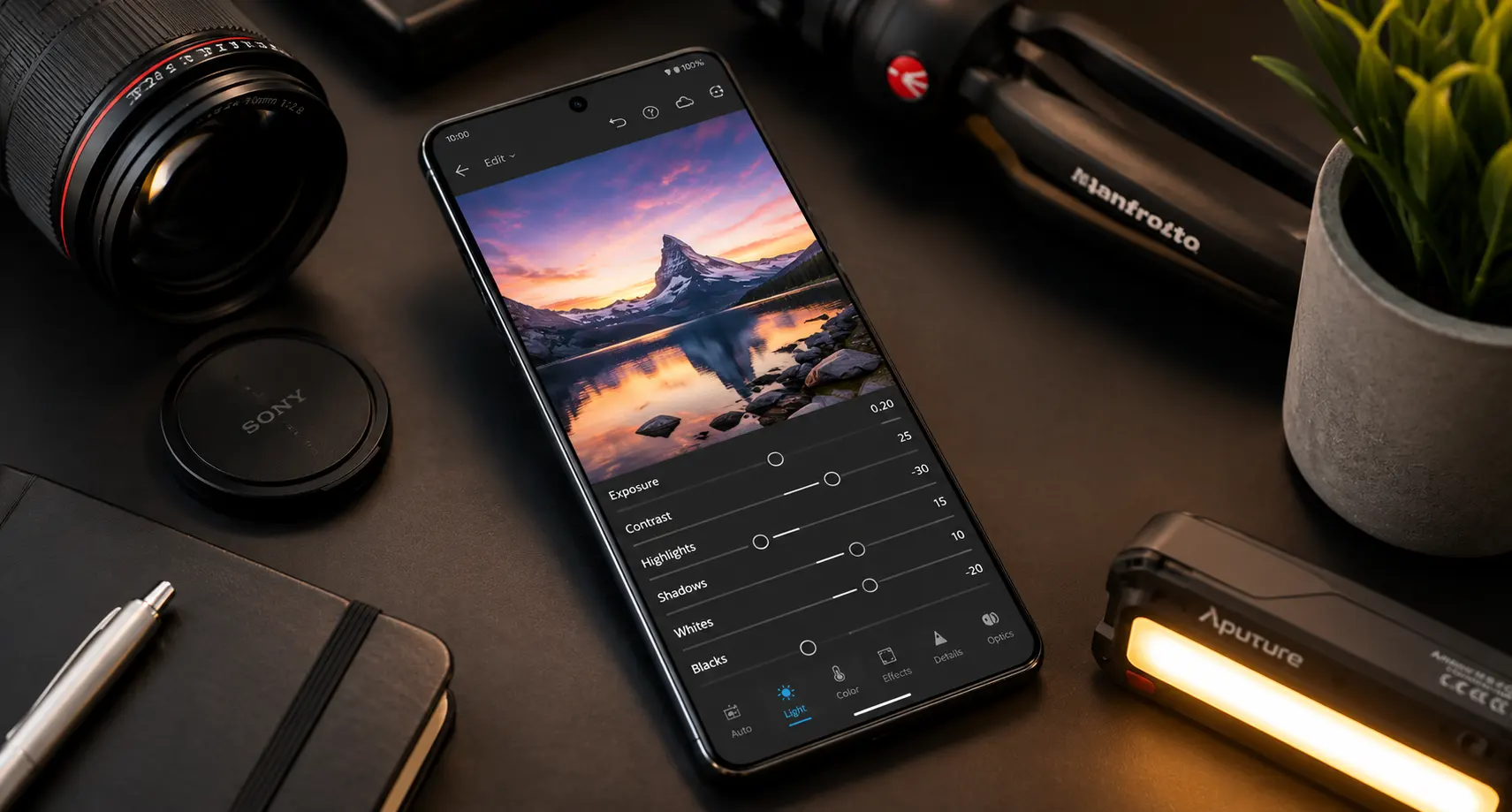
Mobile photography has reached a point where your smartphone is a fully capable creative studio. Choosing the right software comes down to aligning an app’s feature set with your personal photography goals:
- Beginners & Budget Editors: Download Snapseed. Its non-destructive workflow and zero-dollar price tag offer the perfect, risk-free environment to master visual composition.
- Professional Photographers: Invest in Adobe Lightroom Mobile. Its desktop synchronization, RAW processing engine, and precise local masking make it indispensable for serious commercial work.
- Content Creators & Marketers: Lean heavily on Canva or Picsart. Their rich template libraries and lightning-fast AI tools will help you generate scroll-stopping graphics efficiently.
Ultimately, the best photo editing tool is the one that fits seamlessly into your daily workflow and inspires you to create. Download a few of these top picks, experiment with your favorite images, and discover how post-processing can elevate your mobile photography to stunning new heights.