

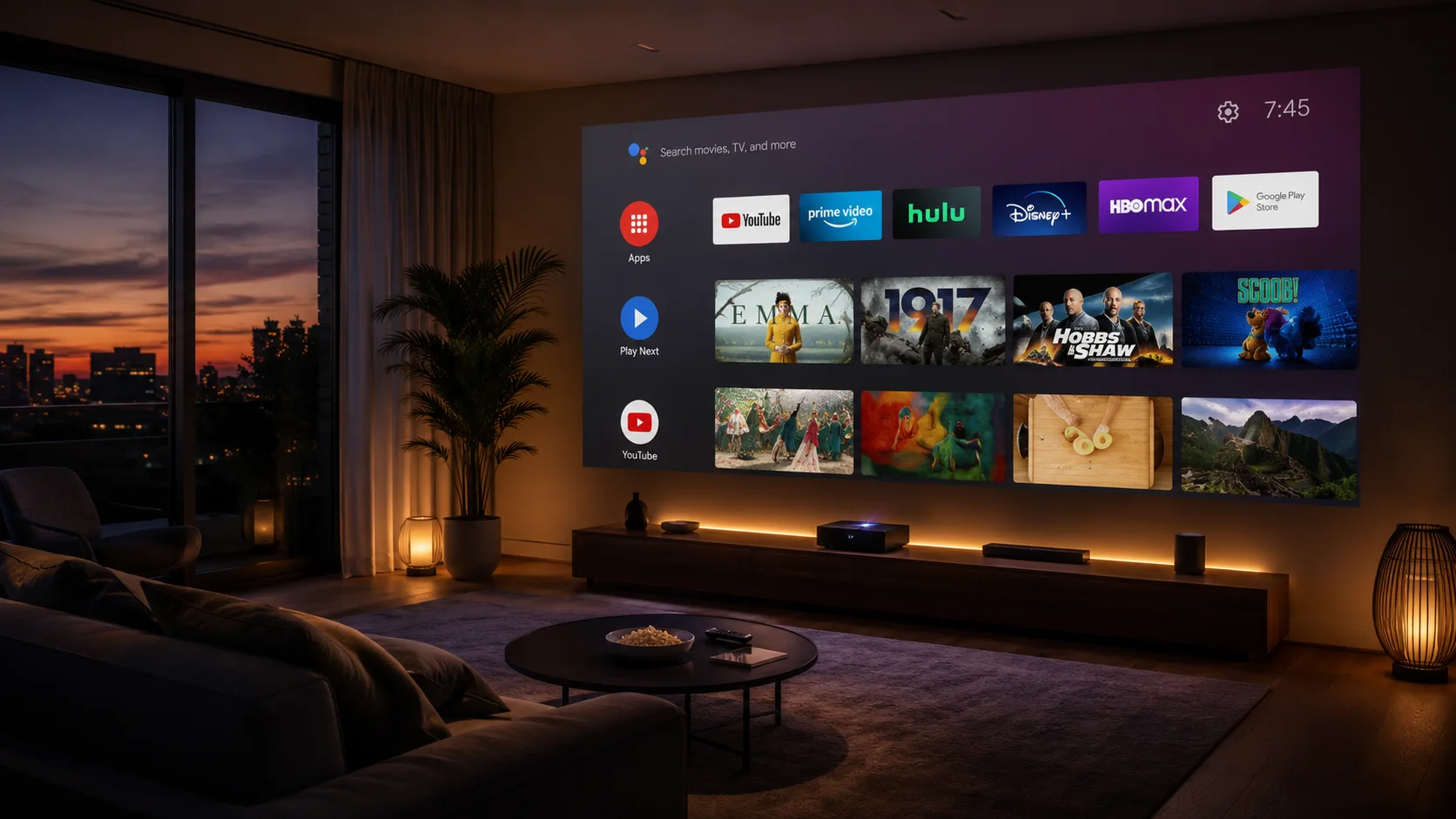
If you recently purchased a smart TV or a streaming box, you might be wondering how to unlock its full potential. The default software gets the job done, but the best Android TV apps can transform your standard television into a powerhouse of entertainment, productivity, and gaming. Whether you want to stream free movies, manage your local network files, or play high-end games from the comfort of your couch, the Google Play Store (and beyond) has something for everyone.
In this comprehensive guide, we will explore the top Android TV apps across multiple categories, including streaming, media players, utilities, browsers, and gaming. We will dive deep into their features, weigh the pros and cons, and provide you with actionable installation and security tips.
Maybe you be interested in:
Best Streaming Apps for Android TV
While Netflix, Hulu, and Amazon Prime Video are standard pre-installs, the true beauty of Android TV lies in discovering apps that offer free or specialized content.
1. Tubi

Tubi has cemented its place as one of the premier ad-supported streaming platforms. Acquired by Fox, this app boasts a massive library of movies, classic TV shows, and anime completely free of charge.
- Features: 100% free streaming, no subscription required, seamless cross-device syncing, and a dedicated “Kids” section.
- Pros: Massive, constantly updated library; totally free; surprisingly low ad load compared to traditional cable.
- Cons: Max resolution is usually 720p; newer blockbuster releases are generally absent.
- Why it’s worth installing: It is the perfect app for cord-cutters who want high-quality entertainment without adding another monthly subscription to their budget.
2. Stremio
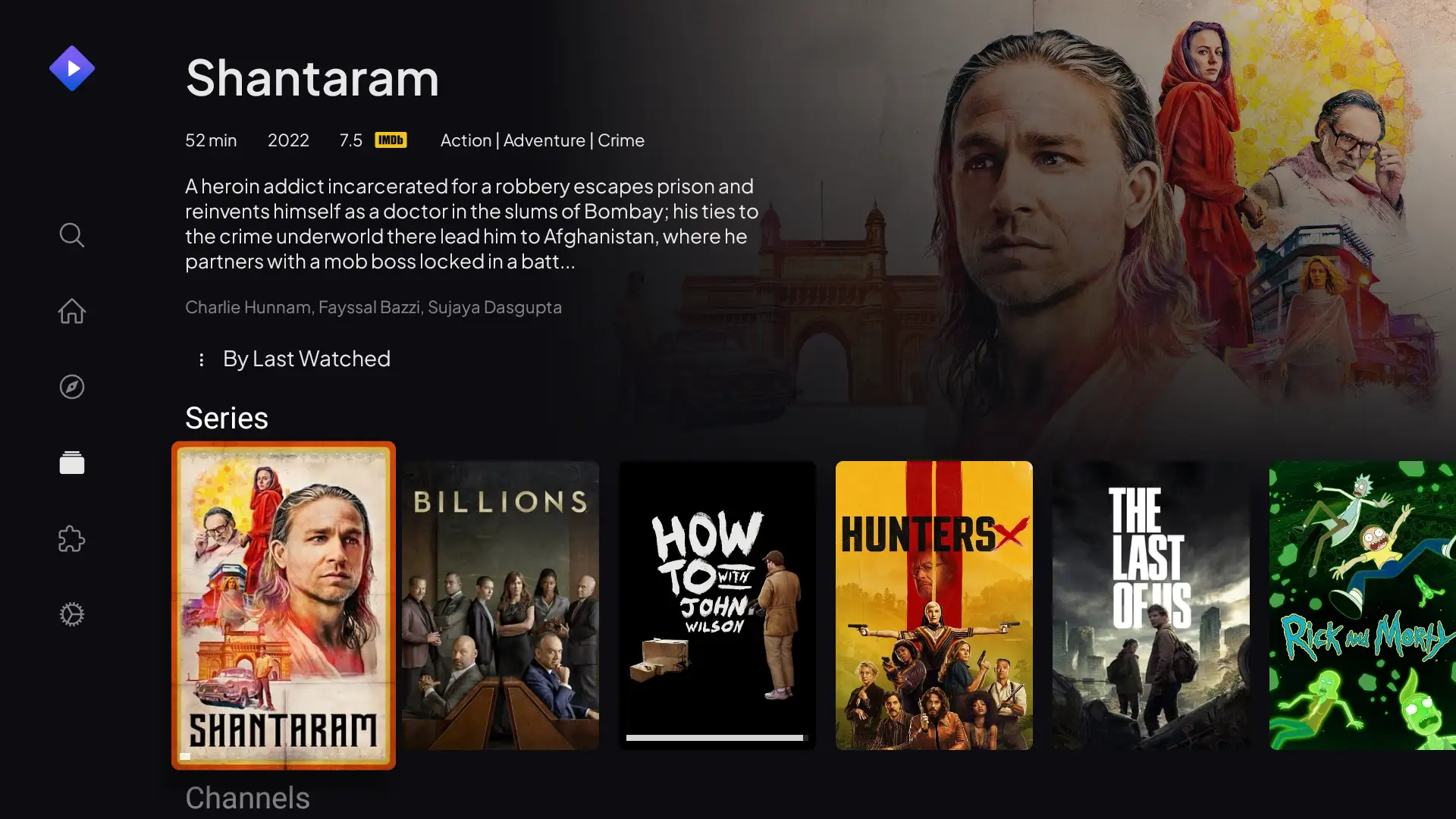
Stremio is a modern media center that acts as a one-stop hub for video content. By utilizing community add-ons, Stremio aggregates links from various sources (including your paid subscriptions like Netflix or Amazon) into a single, sleek interface.
- Features: Unified search across streaming platforms, calendar tracking for new episodes, community-built add-ons.
- Pros: Excellent user interface; consolidates multiple streaming services into one dashboard; very lightweight.
- Cons: Requires third-party add-ons to unlock its full potential, which can be slightly tricky for beginners to set up initially.
- Why it’s worth installing: If you are tired of jumping between five different apps just to find where a specific movie is streaming, Stremio solves the fragmentation problem instantly.
Top Media Players
If you prefer playing your own localized or downloaded content, a robust media player is a must-have application for your setup.
3. VLC for Android

The legendary open-source media player is just as essential on a television as it is on a PC. VLC for Android plays virtually any video or audio file format you throw at it without breaking a sweat.
- Features: Support for MKV, MP4, AVI, MOV, Ogg, FLAC, TS, M2TS, Wv and AAC; multi-track audio and subtitles; local network stream playback.
- Pros: Completely free, open-source, absolutely no ads, handles obscure file types flawlessly.
- Cons: The UI is heavily functional but a bit dated compared to premium media centers.
- Why it’s worth installing: It is the ultimate fallback media player. If a video file won’t play on your TV’s native built-in player, you can guarantee VLC will handle it.
4. Plex
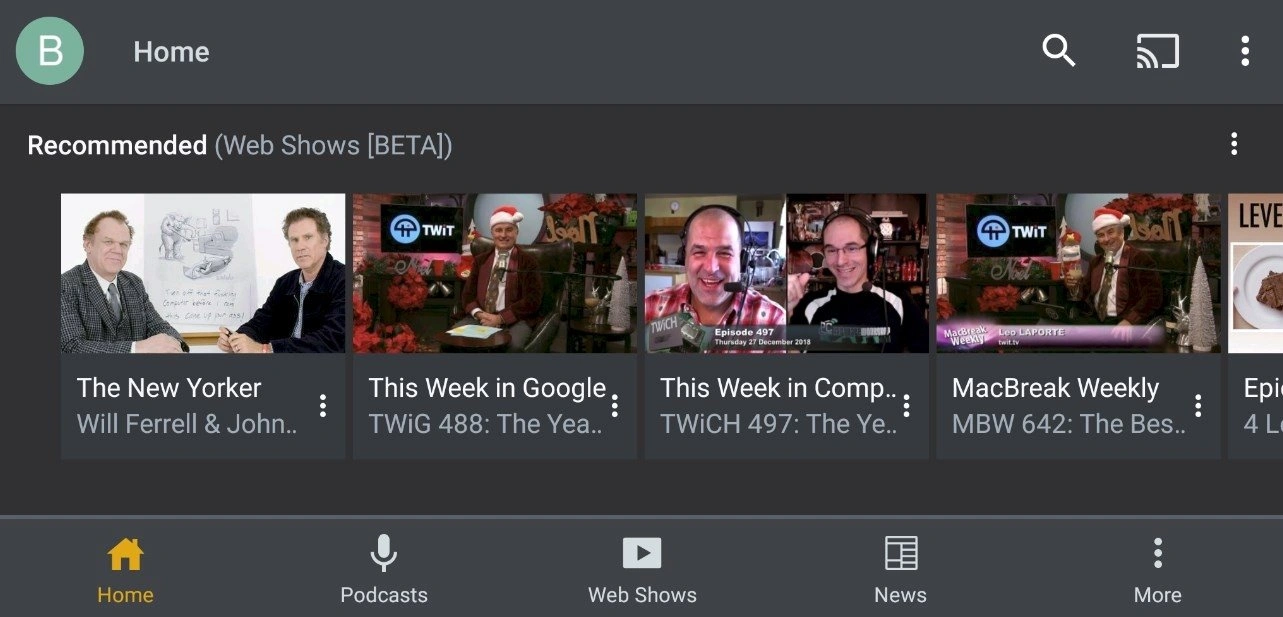
Plex transforms your local movie and music collection into a personal Netflix-style streaming service. You host the server on your PC or NAS device, and the Plex Android TV app acts as the beautiful client.
- Features: Automatic metadata fetching (posters, cast, plot descriptions), cross-device syncing, live TV integration, and free ad-supported streaming movies.
- Pros: Gorgeous user interface; effortlessly organizes messy local files into a professional library.
- Cons: Requires a separate computer or server running to host the media; advanced features require a paid “Plex Pass.”
- Why it’s worth installing: For physical media collectors and digital hoarders, Plex is the undisputed king of media organization on the big screen.
Essential File Managers & Utilities
Navigating the Android TV file system can be a nightmare without the right tools. These utility apps make sideloading and file management a breeze.
5. Send Files to TV
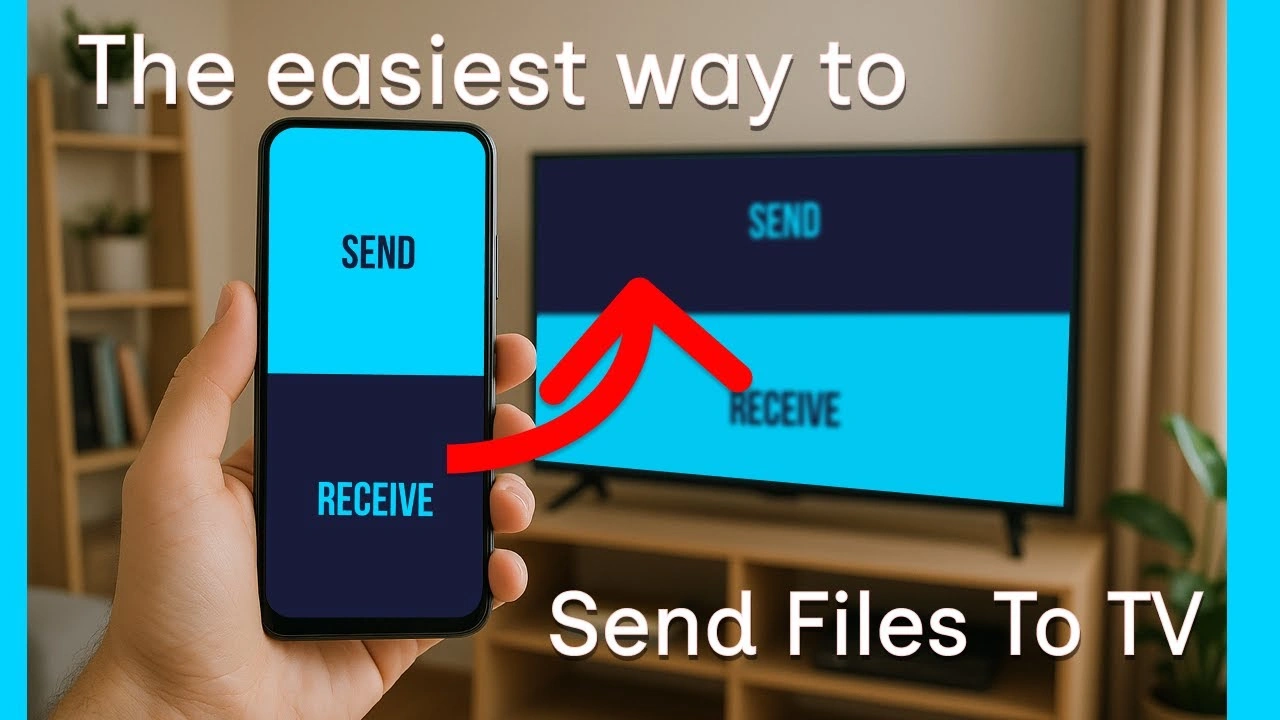
Transferring an APK file or a home video from your phone to your TV used to require USB drives and a lot of patience. Send Files to TV fixes this by securely utilizing your local Wi-Fi network.
- Features: Instant local network transfers, cross-platform support (Android, Windows, macOS), auto-detects devices on the network.
- Pros: Blazing fast transfer speeds; incredibly simple user interface; totally free to use.
- Cons: Contains ads (though they are minimal and non-intrusive); UI design is purely utilitarian.
- Why it’s worth installing: SFTV is arguably the fastest and easiest way to push sideloaded APKs directly from your smartphone to your television without fiddling with flash drives.
6. Solid Explorer
While TV-specific file explorers certainly exist, Solid Explorer provides a dual-pane layout that is incredibly easy to navigate with a standard D-pad TV remote.
- Features: Dual-pane file management, cloud storage integration (Google Drive, Dropbox, OneDrive), FTP/SMB support for accessing networked drives.
- Pros: Clean, ad-free interface; robust networking features for accessing PC files.
- Cons: It is a premium paid app (though it offers a free 14-day trial).
- Why it’s worth installing: Once you have files on your TV, you need a way to manage them. Solid Explorer’s remote-friendly design makes it the best premium file manager available.
Best Browsers for Android TV
Google Chrome isn’t natively available on the Android TV Play Store, leaving a massive gap for web browsing. Fortunately, there are tailored alternatives that work perfectly with a remote.
7. TV Bro

TV Bro is a web browser built specifically from the ground up for the Android TV ecosystem. This means it is designed to be fully navigable without a traditional mouse.
- Features: Built-in ad blocker, download manager, voice search support, custom shortcuts, tabs support.
- Pros: Open-source; flawlessly mapped to remote controls; absolutely no extra hardware needed.
- Cons: Not the fastest browser engine compared to desktop Chrome; lacks bookmark synchronization with other devices.
- Why it’s worth installing: Web browsing on a TV is usually a frustrating experience. TV Bro makes it seamless by ditching the virtual mouse pointer for intelligent, remote-friendly link-snapping.
Productivity & Screen Mirroring
Sometimes you need to cast content from devices that don’t natively play nice with Google’s Cast protocol.
9. AirScreen
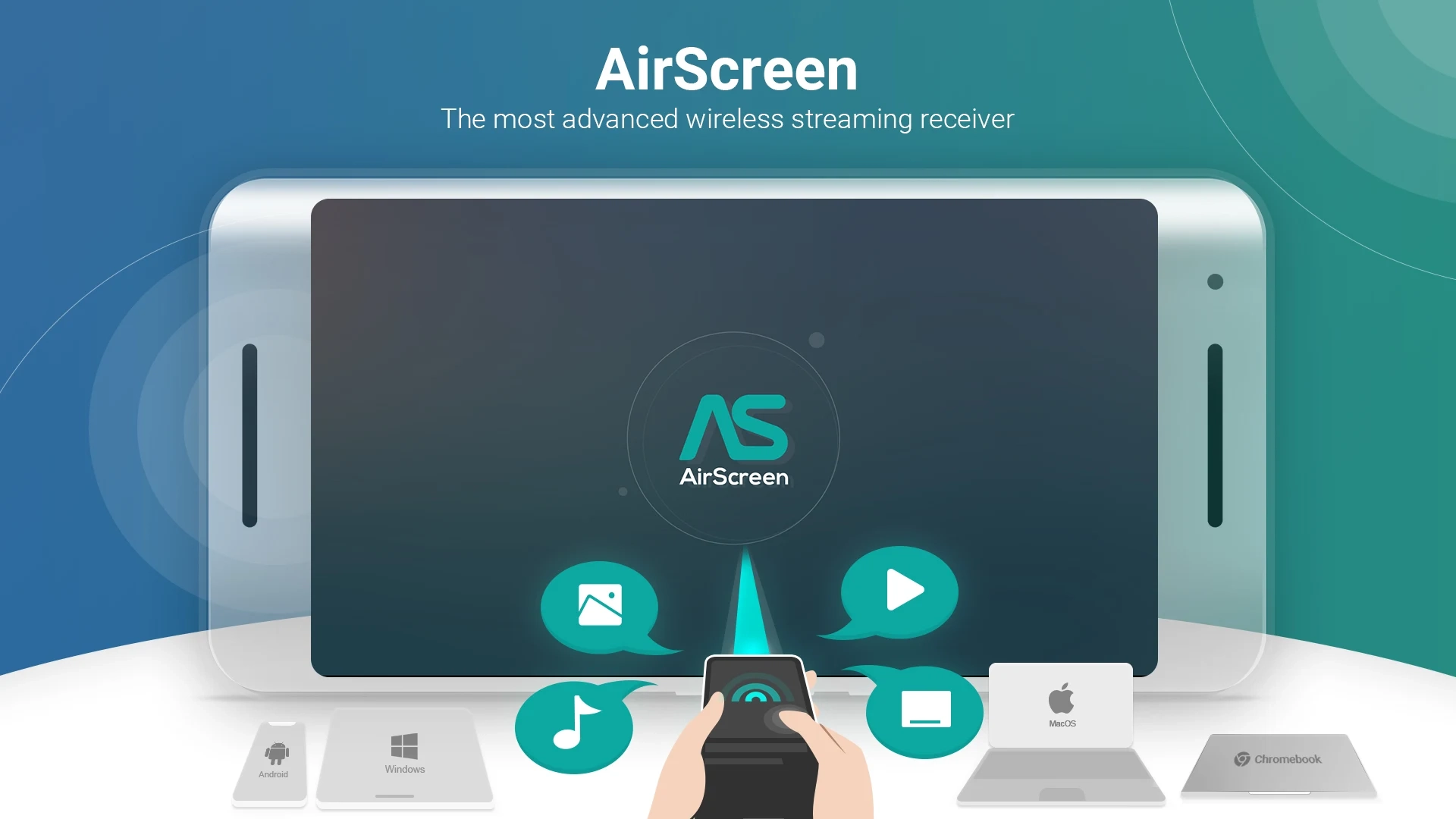
AirScreen acts as an advanced wireless streaming receiver. It essentially turns your Android TV into an AirPlay, Cast, Miracast, and DLNA receiver all in one package.
- Features: Apple AirPlay support, screen recording, background playback, encrypted wireless transmissions.
- Pros: By far the best way to mirror an iPhone, iPad, or Mac to an Android TV; incredibly wide compatibility range.
- Cons: The free version includes pop-up video ads before casting starts, which can be slightly annoying.
- Why it’s worth installing: If you have a mixed-ecosystem household (e.g., an Android TV but Apple smartphones), AirScreen completely bridges the connectivity gap effortlessly.
You might also like: HOMEArticles How to Check if an APK Is Safe
Comparison Table of the Top Android TV Apps
| App Name | Category | Best For | Price |
|---|---|---|---|
| Tubi | Streaming | Free movies & classic TV shows | Free (Ad-supported) |
| Stremio | Streaming | Aggregating various streaming sources | Free |
| VLC | Media Player | Playing obscure video formats | Free (Open-source) |
| Plex | Media Player | Organizing local server media | Free / Premium Pass |
| Send Files to TV | Utility | Sideloading APKs via Wi-Fi | Free |
| Solid Explorer | File Manager | Managing local/cloud storage | Paid ($2.99) |
| TV Bro | Browser | Web browsing with a D-pad remote | Free |
| GeForce NOW | Gaming | Cloud-based AAA PC gaming | Free Tier / Paid Sub |
| AirScreen | Mirroring | Casting from iPhones (AirPlay) | Free (Ads) / Premium |
How to Sideload Apps on Android TV (Installation Tips)
Not all of the best Android TV apps are available directly on the Google Play Store due to regional restrictions, developer choices, or app policies. Sideloading allows you to install any APK manually. Here is the safest and easiest way to do it:
- Install Downloader: Go to the official Google Play Store on your TV, search for, and install the app called “Downloader by AFTVnews.”
- Enable Developer Options: Navigate to your TV’s Settings > Device Preferences > About. Scroll down to the “Build” number and click it 7 times until you see a prompt saying “You are now a developer!”
- Allow Unknown Sources: Go back to Settings > Security & Restrictions. Turn on the toggle to allow the “Downloader” app to install unknown applications.
- Download your APK: Open the Downloader app, enter the URL of a trusted APK repository (like APKMirror), and download your desired app. Alternatively, SFTV (mentioned in our utilities section) is another fantastic way to push APKs straight from your phone!
Security Recommendations for Android TV
When expanding your TV’s capabilities—especially through sideloading and active web browsing—digital security must be a top priority.
- Use a Trusted VPN: If you are using community-built streaming apps or accessing geo-restricted content, always run a Virtual Private Network (VPN) like ExpressVPN, NordVPN, or Surfshark. All of these providers offer excellent, remote-friendly native Android TV apps. This protects your IP address from ISP throttling and potential bad actors.
- Stick to Trusted APK Sources: Only sideload applications from highly reputable repositories like APKMirror or APKPure. Never install APK files derived from random pop-up ads on sketchy websites.
- Keep Play Protect Enabled: Google Play Protect actively scans your device in the background for malicious apps and vulnerabilities. Ensure this feature remains enabled in your TV’s Play Store settings.
Frequently Asked Questions (FAQs)
Are all Android apps compatible with Android TV?
No. While Android TV fundamentally runs on the standard Android OS, applications must be specifically optimized for a “leanback” experience (meaning they are designed to be navigated via a horizontal layout and a D-pad remote). Standard Android phone apps can be sideloaded, but they may render sideways, stretch awkwardly, or require a connected Bluetooth mouse to operate effectively.
Do I need to install an antivirus on my Android TV?
Generally, no. As long as you stick to downloading from the official Google Play Store and carefully curated, trusted APK repositories, Android TV’s built-in Google Play Protect is perfectly sufficient to keep your smart device safe from malware.
Why is my Android TV running slow after installing several apps?
Smart TVs and budget streaming sticks often have severely limited RAM and internal storage space compared to smartphones. If your TV feels sluggish, you may have too many background processes running simultaneously. Go to Settings > Apps, and force-stop the apps you aren’t currently using. You can also utilize utility apps like ‘Background Apps and Process List’ to actively manage your system resources and clear the cache.
Conclusion

Your smart TV is capable of so much more than displaying basic cable and default native streaming services. By exploring the best Android TV apps outlined in this comprehensive guide, you can drastically improve and expand your home entertainment setup. From the pristine, ad-free local playback of VLC to the high-end cloud gaming capabilities of GeForce NOW, the Android TV ecosystem offers unparalleled flexibility for users willing to dig a little deeper.
Remember to practice safe sideloading habits, keep your device’s software updated regularly, and always consider using a VPN when exploring third-party streaming options. Start downloading these fantastic apps today and completely redefine your television experience!