


We’ve all been there. You unlock your phone to quickly reply to a message, and the keyboard takes five seconds to appear. Apps crash, scrolling stutters, and the snappy device you unboxed a year ago now feels like a relic. If you are wondering how to improve Android performance without shelling out cash for a brand-new flagship, you are in the right place.
Android is a highly customizable operating system, which means you have granular control over how it utilizes its resources. A few strategic tweaks can breathe new life into an aging device or squeeze maximum frame rates out of a new one. This comprehensive guide covers proven, practical methods to make your Android smartphone faster, more responsive, and a joy to use.
Why is My Android Phone So Slow?
Smartphones slow down over time for a few biological-like reasons. As flash storage degrades and fills up, read/write speeds plummet. Operating system updates often require more processing power than the version your phone shipped with. Additionally, apps accumulate cache files, and modern applications simply demand more RAM than they did a few years ago. Understanding these bottlenecks is the first step to eliminating them.
1. Free Up Storage Space (and Remove Bloatware)
Solid-state flash memory requires empty blocks to write data efficiently. When your phone’s storage reaches 80% to 90% capacity, the system struggles to find contiguous blocks to write new data, resulting in severe system-wide lag.
How to clean up storage:
- Use built-in tools: Navigate to Settings > Storage and use the native cleanup tool to identify large files, duplicates, and unused apps.
- Uninstall bloatware: Carrier-locked phones often come pre-installed with apps you never use. Go to Settings > Apps, find the offenders, and hit Uninstall. If the app is baked into the system, choose Disable instead.
- Offload media: Back up photos and videos to a cloud service like Google Photos, then use the “Free up space” feature to delete local copies safely.
2. Speed Up UI Animations via Developer Options
This is arguably the oldest and most satisfying trick in the Android enthusiast playbook. Android uses built-in animations for opening apps, pulling down the notification shade, and switching menus. By default, these are set to a 1.0x speed. Cutting the animation time in half makes the phone feel instantly snappier.
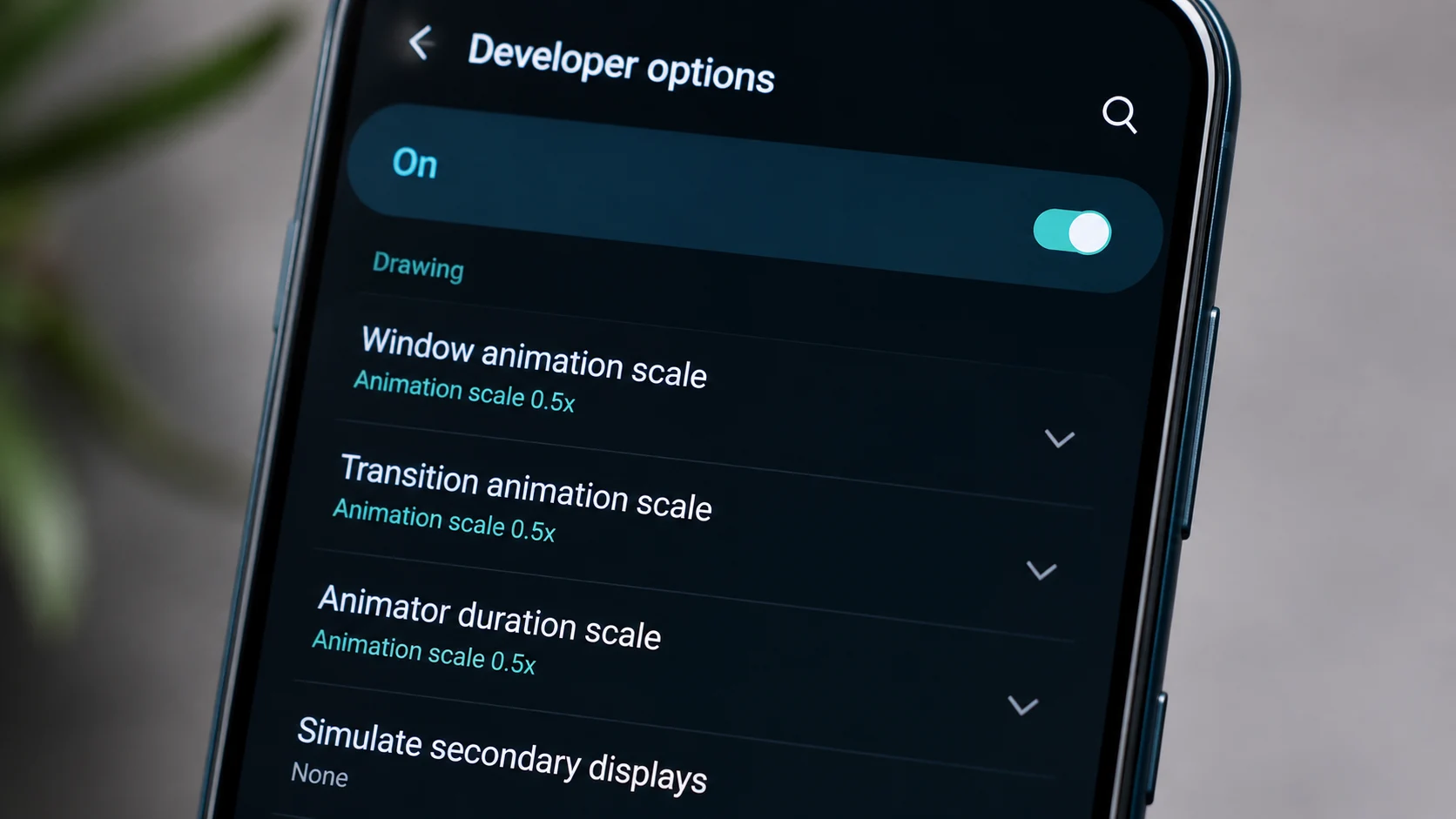
Step-by-step instructions:
- Go to Settings > About phone.
- Scroll down to the Build number and tap it 7 times quickly. Enter your PIN if prompted. You will see a message saying “You are now a developer!”
- Navigate back to the main Settings menu and open System > Developer options.
- Scroll down to the Drawing section.
- Change Window animation scale, Transition animation scale, and Animator duration scale from 1x to 0.5x.
3. Clear App Cache and Data
Apps store temporary data (cache) to load faster the next time you open them. However, over months or years, these cache files can become bloated, corrupted, or outdated, which paradoxically slows down the app and drains your phone’s storage.
Social media apps (like Instagram or TikTok) and web browsers (like Chrome) are notorious storage hogs.
- To clear cache: Go to Settings > Apps > [Select App] > Storage & cache and tap Clear Cache. Note: Do not tap “Clear Data” unless you want to log out and reset the app entirely.
4. Manage Background Apps and RAM Usage
A common misconception is that you need to manually close every app in your recent apps menu. In reality, Android’s memory management is highly efficient—”free RAM is wasted RAM.” However, rogue apps constantly running heavy background processes (like GPS polling or syncing large files) will hog your CPU and drain your battery.
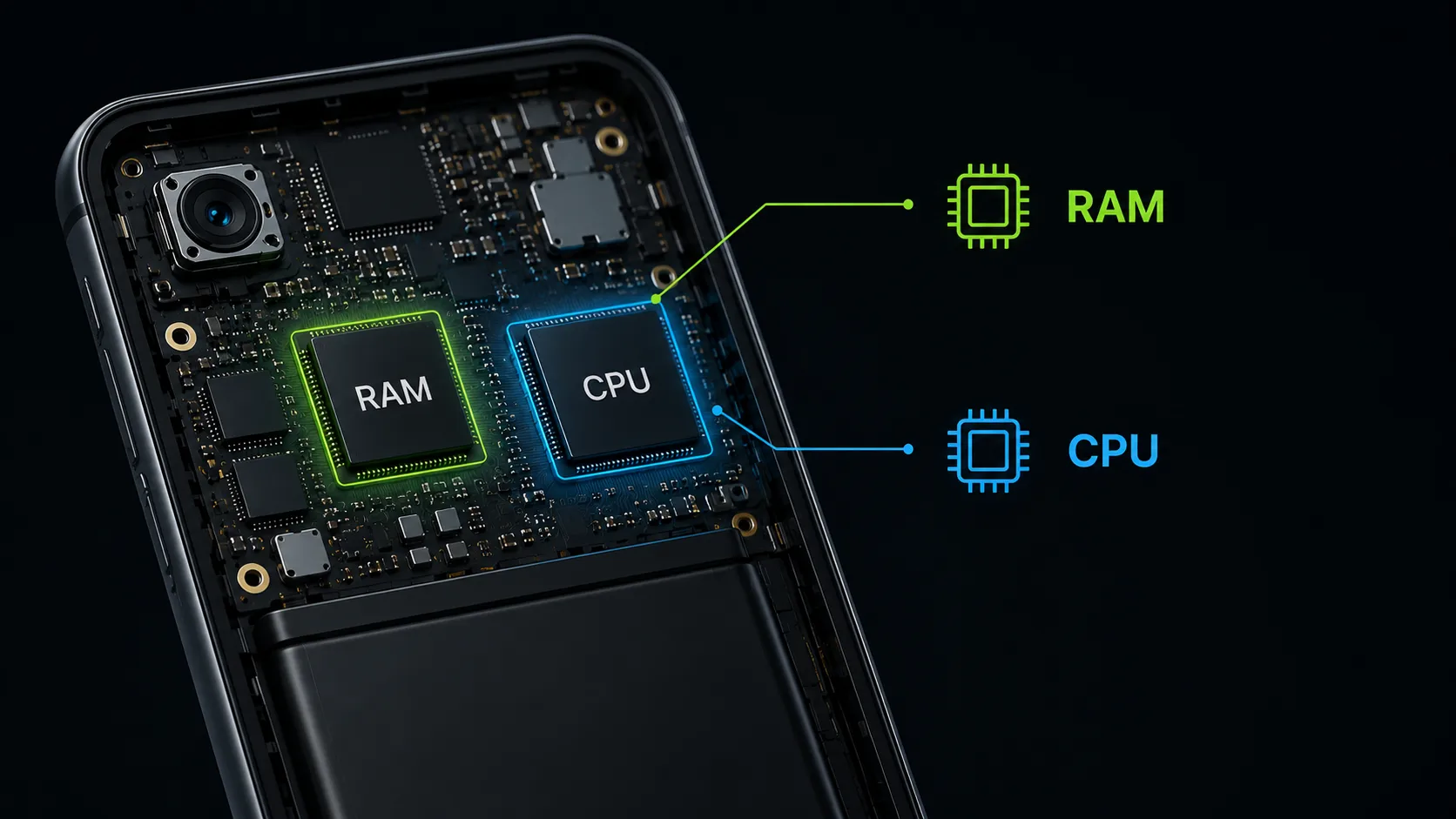
How to rein in background usage:
- Go to Settings > Battery > Battery usage. Look for apps consuming disproportionate amounts of battery in the background.
- If a non-essential app is draining resources, tap it and change its background usage setting to Restricted or Optimized.
- Revoke Location access for apps that don’t absolutely need it (or set it to “Only while using the app”). Constant GPS pinging severely impacts performance.
5. Optimize Battery Settings for Performance
Many Android phones default to a “Balanced” or “Optimized” power profile to stretch battery life. If your phone has a dedicated performance mode, enabling it will allow the CPU and GPU to run at higher clock speeds.
On Samsung devices, for example, you can go to Settings > Battery and device care > Battery > More battery settings > Processing speed and change it from Optimized to High or Maximum. Be aware that this will consume your battery significantly faster and may generate more heat.
6. Keep Your OS and Apps Updated
While some fear that OS updates slow down older phones, ignoring them is a mistake. Manufacturers frequently roll out patches that fix memory leaks, optimize kernel performance, and resolve bugs that cause lag.
Similarly, app developers constantly push updates to improve efficiency. Ensure your apps are set to auto-update over Wi-Fi in the Google Play Store settings.
7. Prevent and Fix Overheating
Thermal throttling is a massive performance killer. When a phone’s internal temperature rises too high—often due to heavy gaming, charging, or direct sunlight—the operating system intentionally slows down the processor to prevent permanent hardware damage.
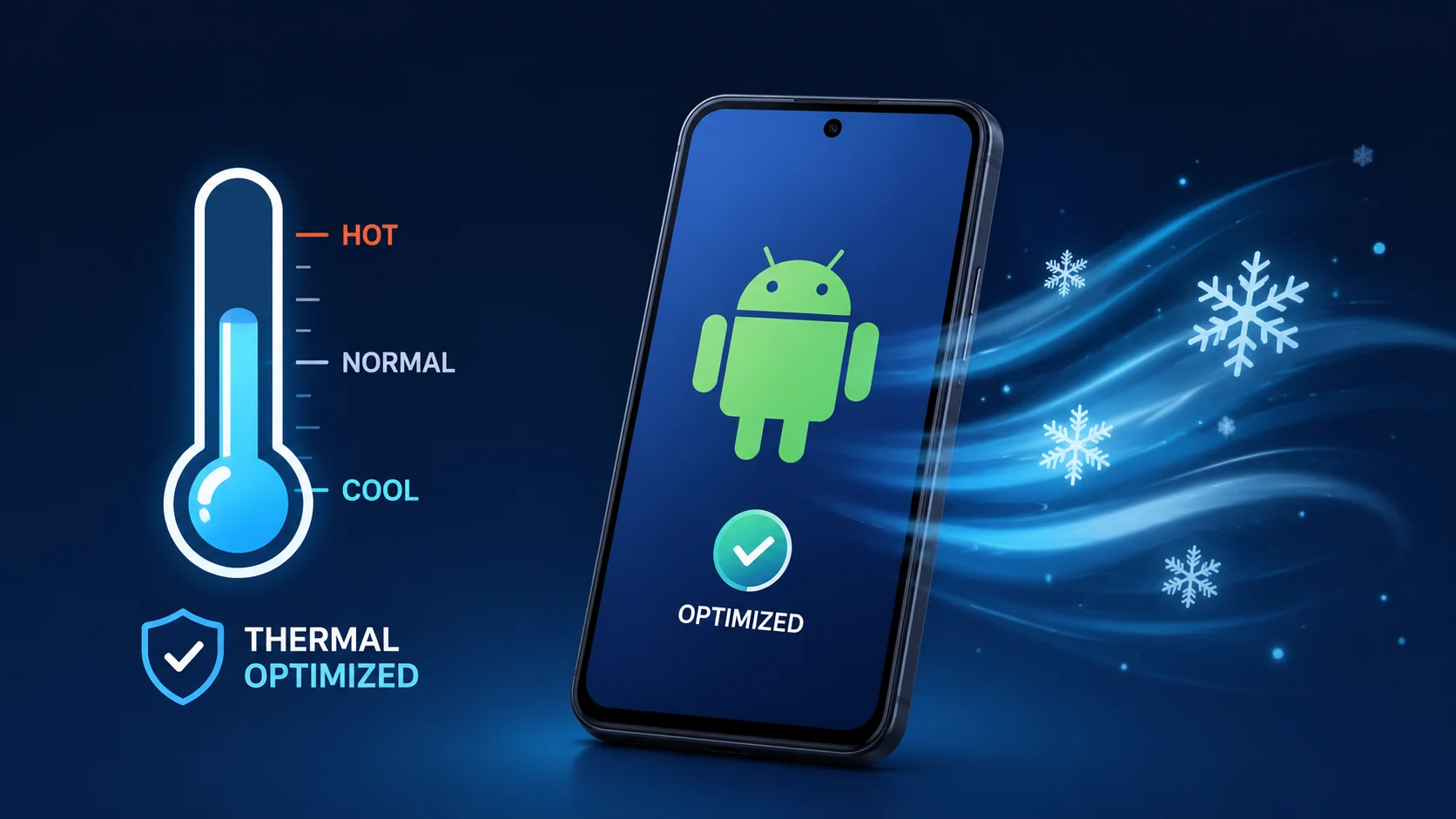
To avoid thermal throttling:
- Remove thick phone cases during resource-heavy tasks like mobile gaming.
- Avoid using the phone while it is fast-charging.
- Lower your screen brightness if you are using GPS navigation in a hot car.
Quick Tips & Performance Comparison Table
If you’re short on time, use this quick-reference table to prioritize your Android optimization efforts based on their real-world impact.
| Optimization Tweak | Time Required | Performance Impact |
|---|---|---|
| Freeing up storage (keeping 15%+ empty) | 5-10 mins | High (Crucial for system stability) |
| Speeding up UI Animations | 1 min | High (Immediate perceived speed) |
| Restricting background location access | 3 mins | Medium (Better battery & less CPU usage) |
| Clearing App Cache | 2 mins | Medium (Fixes app-specific lag) |
| Using “Performance Mode” | 1 min | Low to Medium (Drains battery faster) |
Common Mistakes to Avoid
In the quest to speed up a slow phone, many users accidentally make things worse. Avoid these common pitfalls:
- Using Third-Party “RAM Boosters” or Task Killers: These apps are largely obsolete. They forcefully close apps, but Android is programmed to immediately reopen essential services. This constant closing and reopening cycle taxes your CPU heavily and drains your battery faster.
- Using “Antivirus” Cleaners with Heavy Ads: Many “phone optimizer” apps found on the Play Store are essentially adware disguised as utilities. Stick to built-in system tools like Google’s Files app.
- Closing Apps from the Recent Menu Obsessively: Leaving an app in the background takes minimal battery, but booting it up from scratch takes a lot of processing power. Only swipe away apps if they freeze or if you are completely done using them for the day.
Security Recommendations for a Faster Phone
A compromised phone is a slow phone. Adware and crypto-mining malware operate in the background, consuming massive amounts of bandwidth and CPU power. To keep your device clean and fast:
- Keep Google Play Protect enabled. (Found in the Google Play Store > Profile icon > Play Protect).
- Avoid sideloading APK files from untrusted third-party websites. Stick to verified repositories like APKMirror if you must sideload.
- Review device admin permissions. Go to Settings > Security > Device admin apps and ensure no unrecognized applications have administrative control over your phone.
Frequently Asked Questions (FAQs)
Does a factory reset actually improve performance?
Yes. If you have tried all the steps above and your device is still impossibly slow, a factory data reset is the nuclear option. It wipes all corrupted data, leftover files from deleted apps, and starts your OS fresh. Just remember to back up your photos, contacts, and authenticators first!
Will live wallpapers slow down my phone?
Yes. Live wallpapers require constant GPU rendering and background processing to animate on your home screen. Switching to a static, high-quality image will slightly boost home screen responsiveness and improve battery life.
How much RAM is needed for good Android performance in 2026?
For a smooth experience without aggressive app reloading, 8GB of RAM is considered the standard sweet spot for most users today. Heavy mobile gamers and power users should aim for devices with 12GB to 16GB of RAM.