

Sideloading Android apps opens up a world of possibilities. Whether you want to test an unreleased beta, access a region-locked game, or roll back to an older version of your favorite app, stepping outside the Google Play Store gives you ultimate control over your device. But that freedom comes with a significant catch: you are now solely responsible for your device’s security.
Installing a compromised file can lead to stolen passwords, hijacked social media accounts, or a phone that is virtually unusable due to aggressive adware. So, before you hit that install button, you need to know exactly how to check if an APK is safe.
In this guide, we will walk you through the most effective security checks, tools, and best practices to ensure every file you sideload is clean, secure, and authentic.
What Is an APK and Why Sideload?
APK stands for Android Package Kit. It is the standard file format Android uses to distribute and install mobile apps, similar to how Windows uses .exe files. When you download an app from the Google Play Store, the store automatically downloads and installs the APK in the background.
Sideloading is the process of manually downloading an APK file from a web browser and installing it yourself. While the Play Store has its own built-in security screening, third-party files require you to do the heavy lifting. If a bad actor modifies a popular app to include malicious code and uploads it to a shady forum, downloading that specific file puts your phone at immediate risk.
6 Steps on How to Check if an APK Is Safe
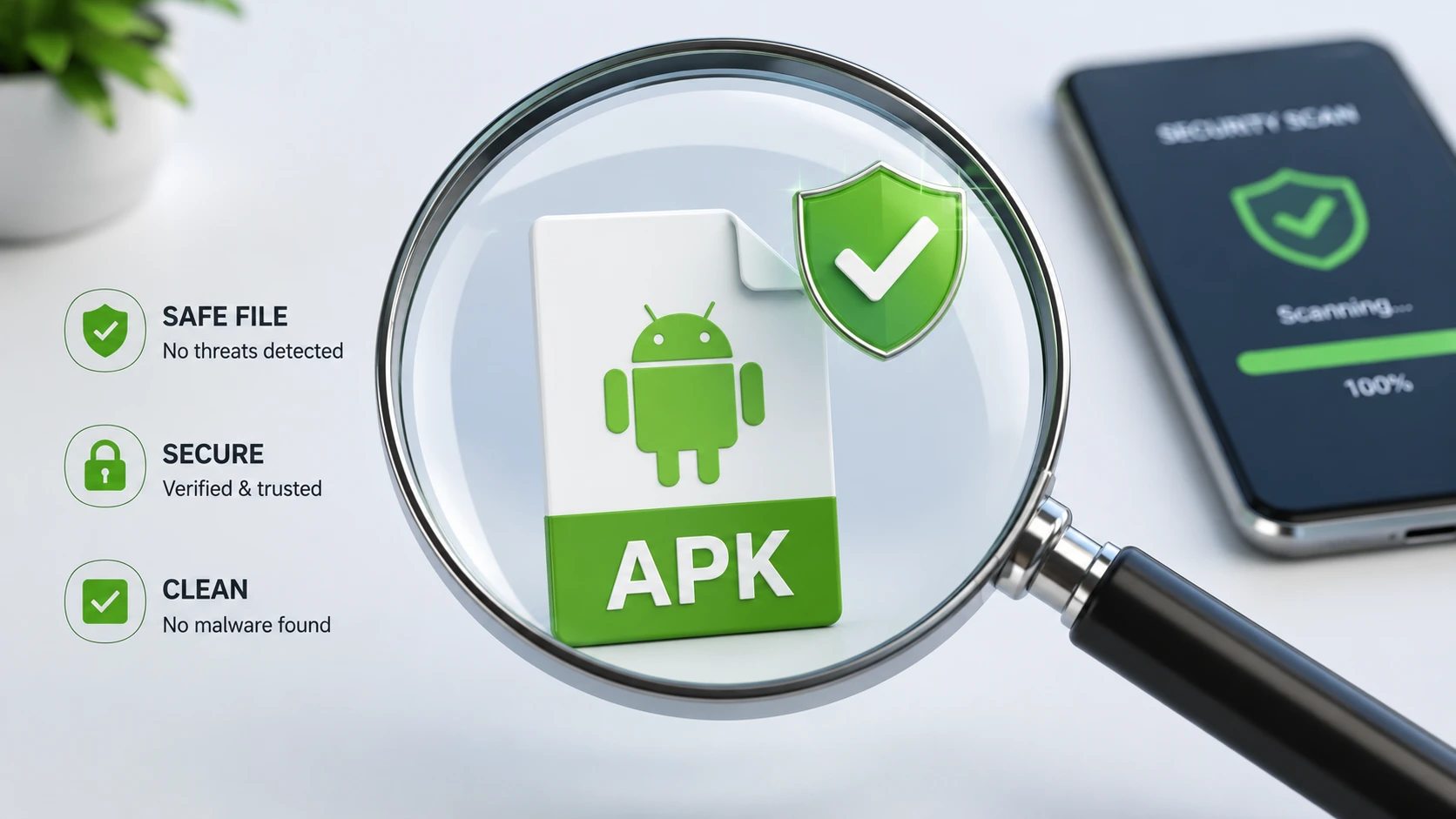
You don’t need to be a cybersecurity expert to keep your device safe. By following these six steps, you can confidently verify the integrity of any Android app.
1. Stick to Trusted Sources
The easiest way to avoid malware is to download files from repositories that have strict vetting processes. Never download an app from a random YouTube description link, a pop-up ad, or an unmoderated forum.
Instead, rely on established platforms:
- APKMirror: Run by the team behind Android Police, this site is the gold standard for safe sideloading. They manually verify cryptographic signatures for every upload to ensure the file matches the original developer’s code.
- F-Droid: A catalog exclusively for Free and Open Source Software (FOSS). F-Droid compiles the apps from the source code itself, guaranteeing that no hidden trackers or malware have been injected into the final package.
- APKPure: A solid alternative to the Play Store, though you should still exercise basic caution and utilize the site’s built-in signature verification tools.
2. Scan the File with VirusTotal
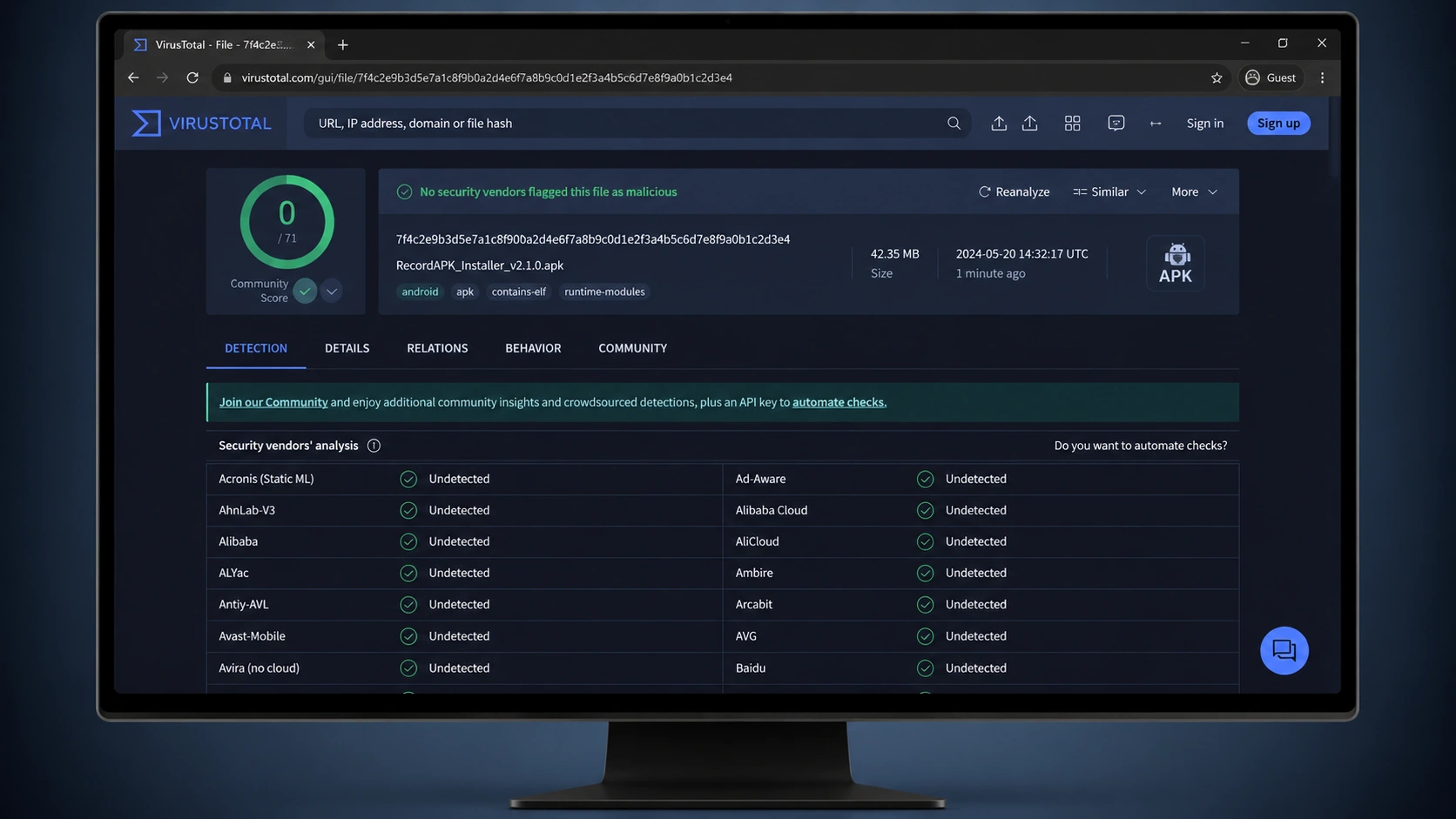
If you downloaded a file from a lesser-known site, your first line of defense is a malware scanner. VirusTotal is a free, web-based tool owned by Google’s parent company, Alphabet. It allows you to upload any file and scans it against more than 70 industry-leading antivirus engines simultaneously.
- Go to the VirusTotal website on your phone or computer.
- Upload the APK file you just downloaded.
- Wait a few seconds for the scan to complete.
If the results show zero threats, you are generally in the clear. If one or two obscure antivirus engines flag it, it might be a false positive (especially if the app requires root access). However, if major engines like Kaspersky, Malwarebytes, or BitDefender flag the file, delete it immediately.
3. Verify App Permissions
Malware often disguises itself as a simple, harmless utility tool. A major giveaway that an app is dangerous is the permissions it requests. When you initiate an installation, Android will prompt you to grant certain permissions.
Use your common sense here. If you are installing a basic offline calculator app, it has absolutely no reason to request access to your contacts, SMS messages, camera, or microphone. If a flashlight app asks for your location data, it is likely harvesting your information to sell to third parties. Deny the permissions and uninstall the file.
4. Check the App Signature
Every legitimate Android app is digitally signed by its developer using a cryptographic key. When an app is updated, Android checks to ensure the new file has the exact same signature as the old one. If someone tries to modify an app (like adding malware to Spotify) and re-upload it, the signature will break.
Sites like APKMirror display the SHA-256 certificate fingerprints for the apps they host. If you are updating an existing app on your phone, Android will naturally block the installation if the signatures don’t match, throwing an “App not installed” error. Never force an installation by deleting the original app just to bypass this error—it is there to protect you.
5. Read User Reviews and Developer Reputation
If you are downloading an indie app that isn’t on a major repository, do some background research. Search for the developer’s name on Reddit or X (formerly Twitter). Look for community discussions about the specific software. Users are quick to report if a newly downloaded app starts draining their battery, displaying full-screen ads, or acting suspiciously.
6. Leave Play Protect Enabled
Google Play Protect is Android’s built-in threat detection system. It doesn’t just scan apps on the Play Store; it actively monitors sideloaded apps on your device as well.
Sometimes, shady tutorials will tell you to turn off Play Protect to install a “modded” game or premium app for free. Do not do this. If Play Protect throws a bright red warning blocking your installation, trust the system and discard the file.
Common Red Flags of a Malicious APK

Even if you know how to check if an APK is safe, it helps to recognize the immediate warning signs of a dangerous file:
- Suspiciously small file sizes: If a modern 3D game claims to be only 2MB in size, it’s a fake. It is likely a tiny payload designed to download malware once opened.
- Requests for Accessibility Services: Accessibility features on Android are incredibly powerful and allow an app to read your screen and simulate taps. Malware frequently abuses this permission to secretly grant itself further admin rights or capture your banking login details.
- Generic package names: An official app will have a package name like
com.whatsapp.android. Malware might use randomized strings likecom.x7f8.update.sys. - “Cracked” premium apps: Downloading paid apps for free is the number one way users get infected. The people who crack these apps often bundle them with background crypto-miners or spyware to make a profit.
Common Mistakes When Installing APKs
One of the biggest mistakes users make is leaving the “Install from Unknown Sources” setting permanently toggled on. In older versions of Android, this was a universal switch. Modern Android versions handle this on a per-app basis.
If you grant your web browser (like Chrome or Brave) permission to install apps, be sure to revoke that permission immediately after your installation is complete. Leaving it on means a malicious website could potentially trigger an unauthorized download and installation prompt in the future.
Troubleshooting Sideloading Issues
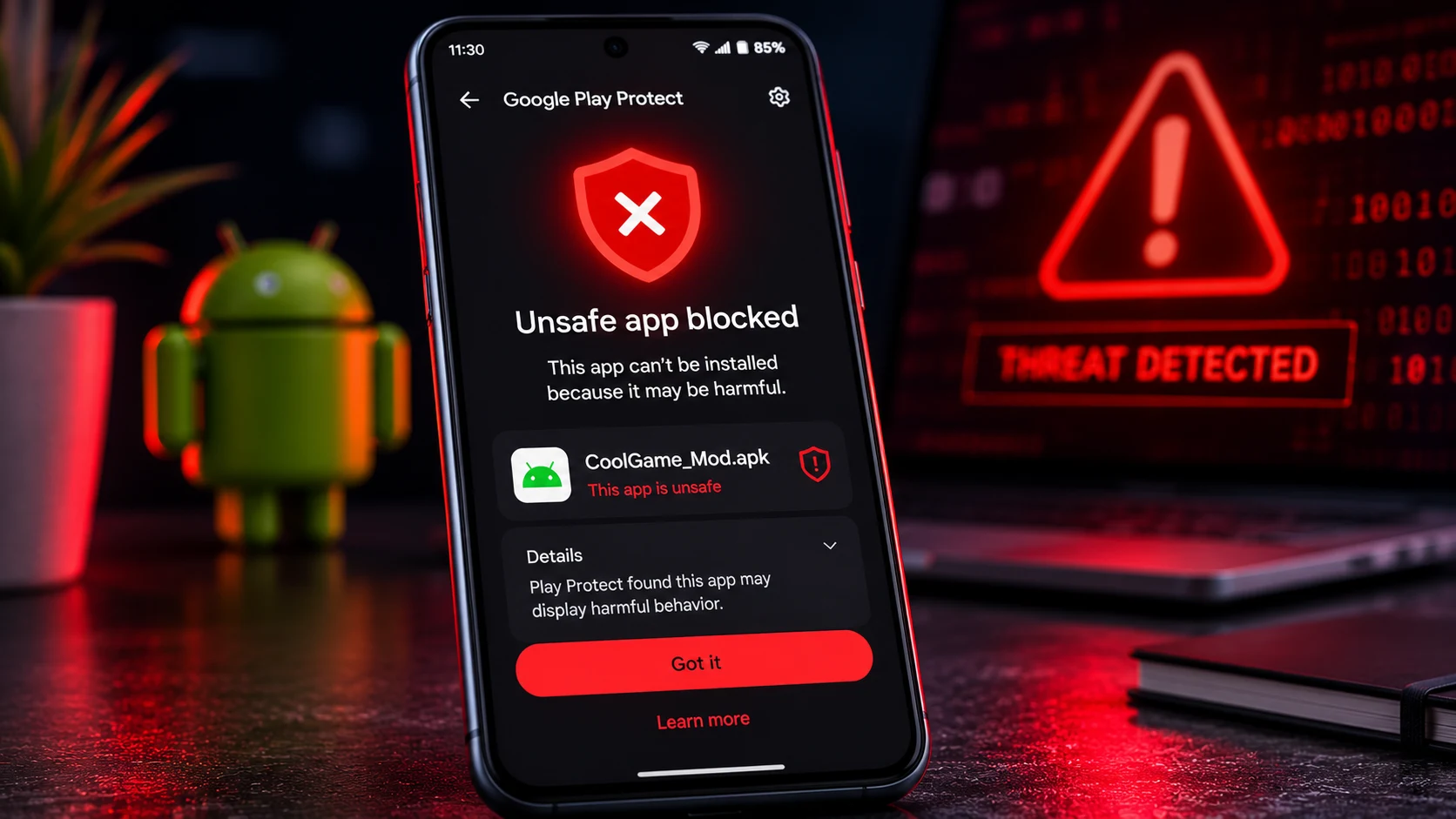
Sometimes a file won’t install, but it doesn’t necessarily mean it’s malicious. Here are a few common errors and what they mean:
- “There was a problem parsing the package”: This usually means the download was interrupted and the file is corrupted, or the app is designed for a newer version of Android than what your phone is running.
- “App not installed as package conflicts with an existing package”: You are trying to install an update with a different cryptographic signature than the app already installed on your device. This happens if you try to replace a Play Store app with an unofficial mod.
- Grayed-out install button: Certain screen-dimming or blue-light filter apps can interfere with the Android installation overlay. Temporarily disable any apps that draw over your screen.
Frequently Asked Questions (FAQs)
Can an APK contain a virus?
Yes. Because an APK is just a compressed archive of code and resources, a hacker can easily decompile it, inject malicious code (like trojans, spyware, or ransomware), recompile it, and distribute it online.
Is it safe to use APKMirror?
APKMirror is widely considered one of the safest third-party repositories on the internet. Their staff manually verifies the cryptographic signatures of all uploads to ensure they match the official developers, guaranteeing the files have not been tampered with.
Can iPhones install APK files?
No. The APK format is entirely exclusive to the Android operating system. iOS devices use a different file format (IPA). You cannot run Android files natively on an iPhone or iPad.
What should I do if I installed a malicious app?
Boot your Android device into Safe Mode immediately (this prevents third-party apps from running). Navigate to your device settings, find the malicious app, remove its administrative privileges if it gave itself any, and uninstall it. Afterwards, run a full scan with a reputable mobile antivirus like Malwarebytes.
Conclusion
Sideloading doesn’t have to be a stressful experience. Now that you know exactly how to check if an APK is safe, you can take full advantage of Android’s open ecosystem without compromising your digital security. Always stick to reputable repositories, run unfamiliar files through VirusTotal, pay close attention to permission requests, and never ignore Google Play Protect warnings. A few seconds of verification can save you from the massive headache of dealing with a compromised smartphone.