

Every Android phone comes with a built-in file manager, but let’s be honest: they usually cover only the bare minimum. If you regularly download documents, organize photos, connect to cloud storage, or unzip compressed folders, that stock app will quickly test your patience. Upgrading to a third-party Android file manager can completely change how you interact with your device, bringing desktop-level organization right to your fingertips.
Whether you need a simple tool to clear up storage space or a powerhouse app with FTP support and dual-pane navigation, the Google Play Store has plenty of options. In this guide, we will break down the best file manager apps for Android, comparing their features, pricing, privacy standards, and overall performance.
Maybe you be interested in:
Why Upgrade Your Android File Manager?
Most default file managers (like Samsung’s “My Files” or standard AOSP files) are designed for casual users. While they handle basic copying and pasting, they lack advanced utility. A dedicated third-party app allows you to:
- Manage Cloud Storage: Access Google Drive, Dropbox, and OneDrive natively within the app, letting you move files between local and cloud storage without switching applications.
- Access Network Drives: Connect to your home PC or NAS via SMB, FTP, or WebDAV.
- Extract Archives: Easily create or open ZIP, RAR, 7Z, and TAR files without downloading separate extraction tools.
- Hide and Encrypt Files: Secure your sensitive documents and photos behind biometric locks or PINs.
Top Picks: Best File Manager Apps for Android
1. Solid Explorer
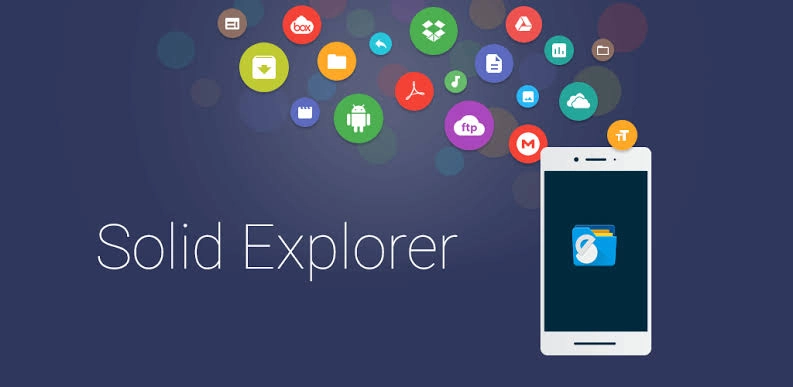
Solid Explorer has been a crowd favorite for years, and it continues to earn its spot at the top. Its standout feature is the dual-pane layout in landscape mode, which makes dragging and dropping files between two different folders incredibly intuitive.
Beyond its beautiful Material Design interface, Solid Explorer is packed with features. It natively supports major cloud providers, handles almost every archive format, and allows you to encrypt specific files or folders. If you want a perfect balance of aesthetics and power, this is the app to get.
- Pros: Dual-pane navigation, highly customizable UI, robust cloud and NAS support, built-in encryption.
- Cons: Not entirely free (offers a 14-day trial before requiring a one-time purchase).
- Pricing: Free 14-day trial; $2.99 one-time purchase.
- Ideal User: Mainstream power users who want a beautiful, highly functional interface without overwhelming clutter.
2. Files by Google
If you aren’t a power user and just want a reliable, ad-free app to clean up your phone and find lost documents, Files by Google is unmatched. Originally designed for entry-level Android Go devices, it has evolved into a fantastic daily driver for all smartphones.
The app aggressively scans your device for duplicate photos, large video files, and forgotten memes, offering one-tap solutions to free up space. It also integrates seamlessly with Quick Share (formerly Nearby Share) for rapid offline file transfers between Android devices and Chromebooks.
- Pros: Excellent junk cleaning tools, totally free with zero ads, Quick Share integration, Safe Folder feature.
- Cons: Lacks advanced features like network storage (SMB/FTP) or dual-pane views.
- Pricing: 100% Free.
- Ideal User: Casual users whose primary goal is freeing up storage space and keeping their phone organized.
3. MiXplorer Silver

Born from the XDA Developers forums, MiXplorer Silver is the undisputed king for hardcore Android enthusiasts. There is almost nothing this app cannot do. It features deep customization, allowing you to tweak every color, icon, and layout element.
Functionally, it supports over 20 cloud storage providers, advanced regex search, EPUB/PDF reading, and direct audio/video playback. You can even run an FTP server directly from your phone. It has a steeper learning curve, but the feature set is staggering.
- Pros: Unrivaled feature set, exhaustive format support, heavily customizable, built-in server capabilities.
- Cons: The sheer number of options can be overwhelming for average users.
- Pricing: $4.99 on the Play Store (a free version is technically available via XDA, but buying the Play Store version supports the developer).
- Ideal User: Tech enthusiasts, developers, and users who want absolute control over their file system.
4. Total Commander
Total Commander is the definition of “function over form.” The interface looks like it belongs in the Android 4.0 era, but veteran users swear by it. It is incredibly lightweight, blindingly fast, and completely free of ads or tracking.
Its strength lies in its plugin system. Instead of bloating the main app, Total Commander lets you download specific plugins for FTP, WebDAV, LAN access, and cloud storage only if you need them. It also features a dual-pane layout, though you have to swipe to switch between the two panels.
- Pros: Incredibly lightweight, zero ads, modular plugin system, deeply powerful.
- Cons: The user interface is very dated and unintuitive for beginners.
- Pricing: 100% Free.
- Ideal User: Old-school power users who prioritize performance and modularity over modern aesthetics.
5. Material Files

For the privacy-conscious user who wants a modern UI without spending money, Material Files is a hidden gem. It is a Free and Open Source Software (FOSS) project that rigorously adheres to Google’s Material Design 3 guidelines.
The app provides a clean, minimalist experience while still packing essential power-user tools like SMB support, root access, and archive extraction. Because it is open source, you can audit the code yourself, ensuring your personal data is never being tracked or sold.
- Pros: Open-source, no ads or tracking, gorgeous Material You interface, root support.
- Cons: Lacks direct cloud storage integration (Google Drive, Dropbox, etc.).
- Pricing: 100% Free.
- Ideal User: Privacy advocates and minimalists who want a beautiful, local-focused file explorer.
You might also like: How to Install a Game with OBB on Android
Comparison Summary Table
| App Name | Price | Best Feature | Cloud Support | Ads? |
|---|---|---|---|---|
| Solid Explorer | $2.99 | Dual-pane UI | Yes | No |
| Files by Google | Free | Smart junk cleaner | Google Drive only | No |
| MiXplorer Silver | $4.99 | Deep customization | Yes (Extensive) | No |
| Total Commander | Free | Modular plugins | Via Plugins | No |
| Material Files | Free | Open-source privacy | No | No |
How to Choose the Right Android File Manager
With so many options on the Google Play Store, finding the right app comes down to identifying your specific needs:
1. Assess Your Cloud Needs
If you live entirely in the Google ecosystem, Files by Google might be all you need. However, if you regularly juggle Dropbox, OneDrive, and Google Drive accounts for work, you will need an app like Solid Explorer or MiXplorer Silver that allows you to log into multiple cloud accounts simultaneously.
2. Consider Your Network Environment
Do you need to pull movies off a home NAS (Network Attached Storage) or send files to a local PC? Look for apps that explicitly list SMB (Server Message Block) and FTP (File Transfer Protocol) support. Material Files and Solid Explorer excel here.
3. Check the Monetization Strategy
Be wary of “free” file managers from unknown developers that are loaded with intrusive ads. A file manager has deep access to your personal data. It is always better to pay a few dollars for a premium app, or stick to trusted, open-source alternatives rather than enduring pop-up ads that might compromise your privacy.
Security and Privacy Tips for Managing Files
Because a file manager requires broad permissions to read and write data across your entire phone, security should be a top priority:
- Watch the Permissions: A file manager only needs storage access. If a file manager app asks for permission to make phone calls, access your microphone, or read your SMS messages, uninstall it immediately.
- Use Secure Vaults: If you are storing tax documents or personal photos on your phone, utilize features like Files by Google’s “Safe Folder” or Solid Explorer’s encrypted archives. These require a PIN or fingerprint to access and hide the files from other apps.
- Beware of “Speed Boosters”: Many rogue file managers masquerade as “RAM cleaners” or “Speed Boosters.” Android manages RAM automatically; these extra tools are usually snake oil designed to serve you background ads. Stick to the reputable apps listed in this guide.
Frequently Asked Questions (FAQs)
Is it safe to use third-party file managers?
Yes, provided you download reputable apps from the Google Play Store. Apps like Solid Explorer, Total Commander, and Material Files are highly trusted within the Android community. Always avoid unknown apps with poor grammar in their descriptions or aggressive ads.
Where do deleted files go on Android?
Unlike Windows, Android does not have a system-wide “Recycle Bin.” However, some file managers (like Solid Explorer and Files by Google) have implemented their own localized trash folders. If you delete a file using these apps, it will stay in their respective trash bin for about 30 days before being permanently erased.
Can a file manager access hidden system files?
By default, no. The Android operating system protects core system partitions. However, if you have a “rooted” device, apps like MiXplorer Silver and Material Files allow you to grant them root access, giving you the ability to browse and modify root system files.
Final Verdict
Choosing the best Android file manager ultimately comes down to your personal workflow. If you want a beautifully designed app that balances power and ease of use, Solid Explorer is easily worth the small asking price. If you just want to clear out junk files and keep things simple, stick with Files by Google.
For the privacy purists, Material Files is a stunning open-source option, while power users looking for limitless functionality should dive into the deep settings of MiXplorer Silver.