



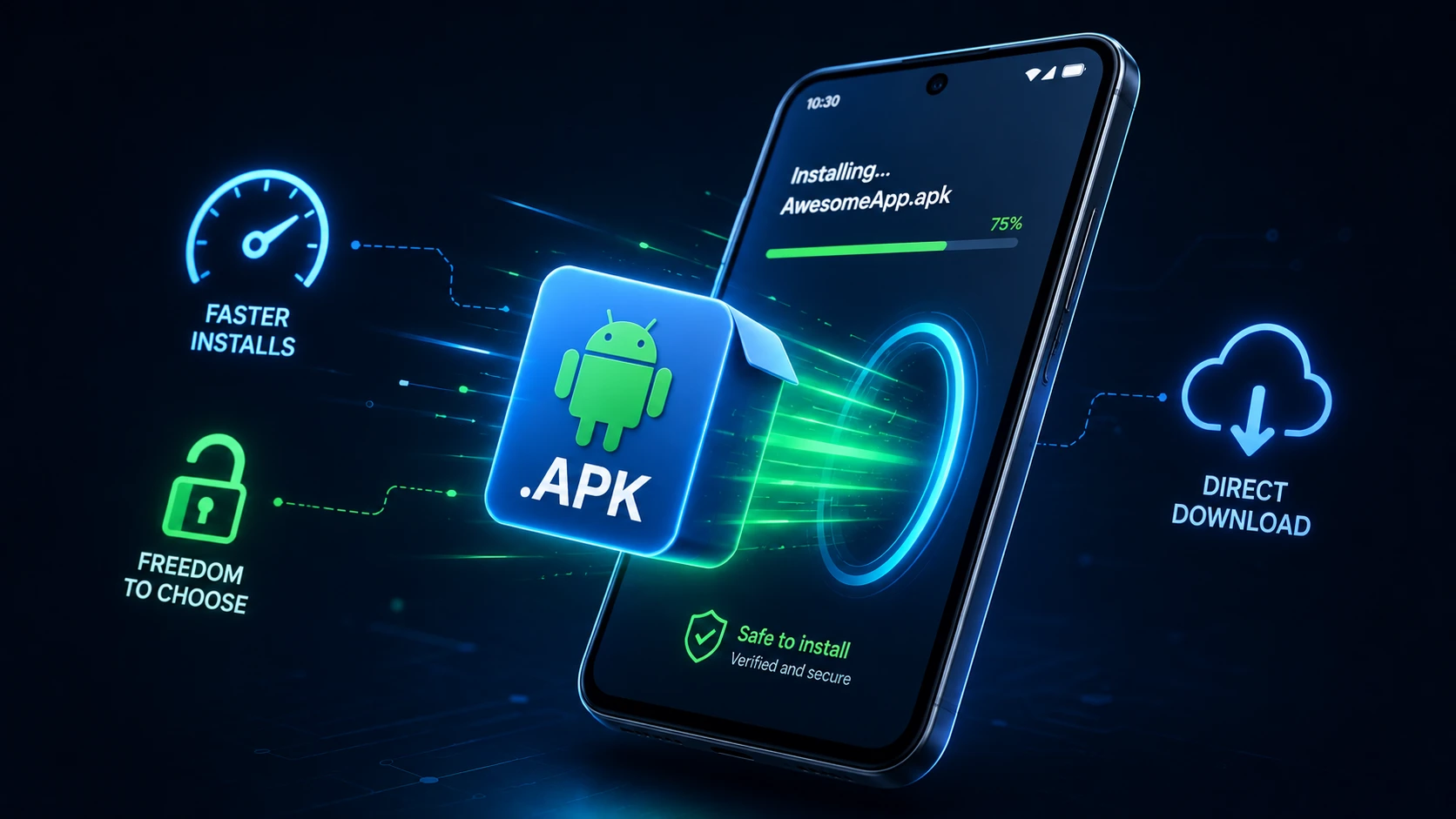
Before jumping into the installation instructions, let’s clarify what we are working with. APK stands for Android Package Kit (sometimes referred to as Android Application Package). Think of an APK file as the Android equivalent of an .exe file on Windows or a .dmg file on macOS.
Whenever you download an application from the Google Play Store, your phone automatically downloads and installs an APK file in the background without you ever seeing it. When you manually download an APK file from a website, you are simply taking over the role of the app store and executing the installer yourself.
Why Install APK Files? (The Top Benefits)
You might wonder why anyone would bother going through manual steps when the Google Play Store houses millions of apps. While official app stores are convenient, learning how to install APK files on Android unlocks several practical advantages:
1. Access Geo-Blocked or Region-Specific Apps
Have you ever clicked an app link only to see the frustrating message: “This item is not available in your country”? App developers frequently restrict releases to specific regions due to licensing agreements, server capacity, or localized testing. By downloading the official APK from a trusted third-party repository, you can bypass these artificial geographic restrictions completely.
2. Get Early Access to App Updates and Betas
When a developer releases a major update, they rarely push it to all users globally at the exact same time. Instead, they use “staged rollouts” that can take weeks to reach your device. If you don’t want to wait around for new features, you can grab the updated APK file online and install it immediately.
3. Roll Back to Older, More Stable App Versions
We have all experienced an app update that ruined a clean user interface, removed a favorite feature, or introduced frustrating bugs and battery drain. When you rely solely on official app stores, you are stuck with whatever version the developer serves you. Installing APKs allows you to downgrade to an older, proven version of an app until the developers fix their latest release.
4. Discover Open-Source and Indie Gems
Google maintains strict developer policies, and sometimes fantastic, privacy-focused open-source apps don’t qualify for listing on the official store—often because they compete directly with Google’s own business model (such as ad-free YouTube alternatives or advanced system utility tools). Sideloading gives you access to vibrant independent developer communities.
Understanding the Risks: Safety First
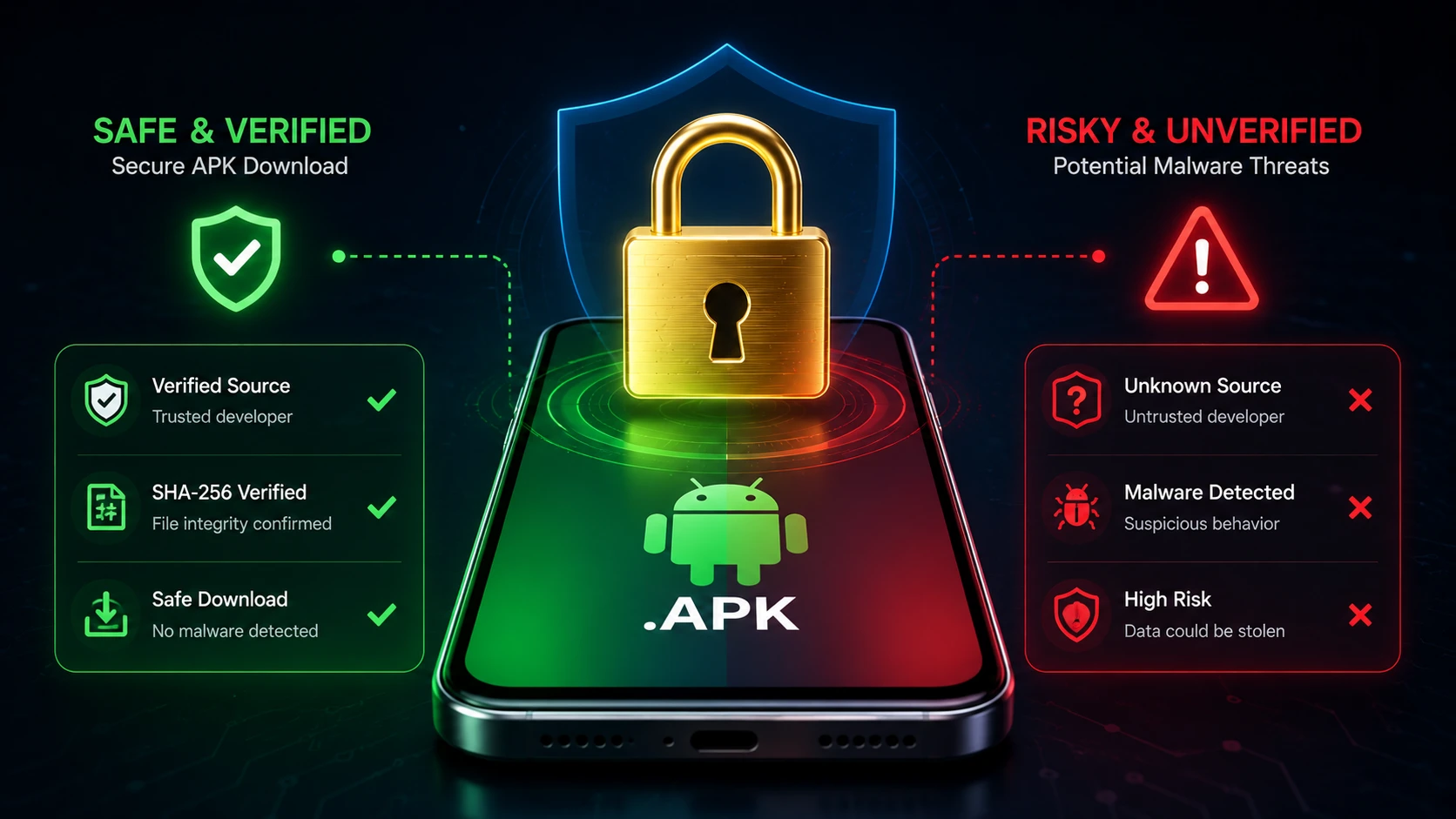
With great freedom comes significant responsibility. When you install apps through the Play Store, you benefit from automated screening tools like Google Play Protect, which scan apps for known malware, spyware, and billing fraud.
When you download APK files from random corners of the web, you step outside that safety net. A malicious APK can:
- Inject aggressive adware that bombards your screen with pop-ups.
- Install background spyware designed to harvest SMS messages, login credentials, and banking data.
- Subscribe your phone number to premium rate SMS services without your consent.
- Turn your device into a background node for a botnet or cryptocurrency mining.
Does this mean installing APKs is inherently dangerous? Absolutely not. It simply means you must practice basic digital hygiene and vet your sources before tapping “Install.”
How to Install APK Files on Android (Step-by-Step Process)
Android has evolved significantly over the years, and the way the operating system handles third-party app installations changed to prioritize user security. Let’s walk through the exact process for modern devices, as well as older Android models.
Step 1: Enable “Install Unknown Apps” (Android 8.0 Oreo and Newer)
On modern Android devices running Android 8.0 or higher (which accounts for the vast majority of active smartphones today), Google replaced the old system-wide “Unknown Sources” checkbox with a safer, per-app permission model. You don’t give your entire phone permission to install random files; instead, you grant permission specifically to the app you are using to download or open the file (like Google Chrome, Samsung Internet, or your File Manager).
- Open your phone’s Settings app.
- Scroll down and tap on Apps (or Apps & Notifications).
- Tap the three-dot menu icon in the top right corner or look for Special app access.
- Select Install unknown apps.
- You will see a list of applications installed on your phone. Scroll through and select the web browser you plan to use for downloading the APK (for example, Chrome).
- Toggle the switch next to Allow from this source to the ON position.
Pro Tip: You don’t necessarily have to do this in Settings beforehand. If you try to open an APK file without this setting enabled, Android will pop up an alert box with a direct link to Settings where you can flip the switch instantly!
Step 1 (Alternative): Enable “Unknown Sources” (Android 7.0 Nougat and Older)
If you are dusting off an older tablet or smartphone running Android 7.0 or earlier, the process is slightly different and relies on a global system toggle:
- Go to your device’s Settings.
- Navigate to Security (or Lock screen and security on some device brands).
- Look for the entry labeled Unknown sources.
- Tap the toggle switch to turn it on, and read the confirmation prompt before tapping OK.
Step 2: Download the APK File Safely
Now that your device is ready to accept third-party packages, it is time to download your desired APK file. Navigate to a reputable repository using your mobile browser.
Never download APKs from shady forums, random pop-up advertisements, or sites promising “free unlimited gems” for multiplayer games. We highly recommend sticking to well-established platforms that inspect file signatures and verify developer cryptographic keys, such as:
- APKMirror: Run by the creators of Android Police, this site strictly hosts original, untampered apps verified against official Play Store signatures.
- F-Droid: An incredible, community-run repository dedicated entirely to Free and Open Source Software (FOSS) for Android.
- APKPure: A popular alternative store that offers a massive library of clean, original APK files and region-locked games.
Step 3: Locate and Open the APK File
Once the download completes, you need to launch the installer file. There are two easy ways to do this:
- Via Browser Notifications: Pull down your phone’s notification shade. You should see a notification stating that your file has finished downloading. Simply tap that notification to launch the installer.
- Via File Manager: If you accidentally cleared your notifications, open your phone’s built-in file manager app (often called Files, My Files, or Files by Google). Navigate to your Downloads folder and tap on the `.apk` file you just downloaded.
Step 4: Confirm Installation and Review Permissions
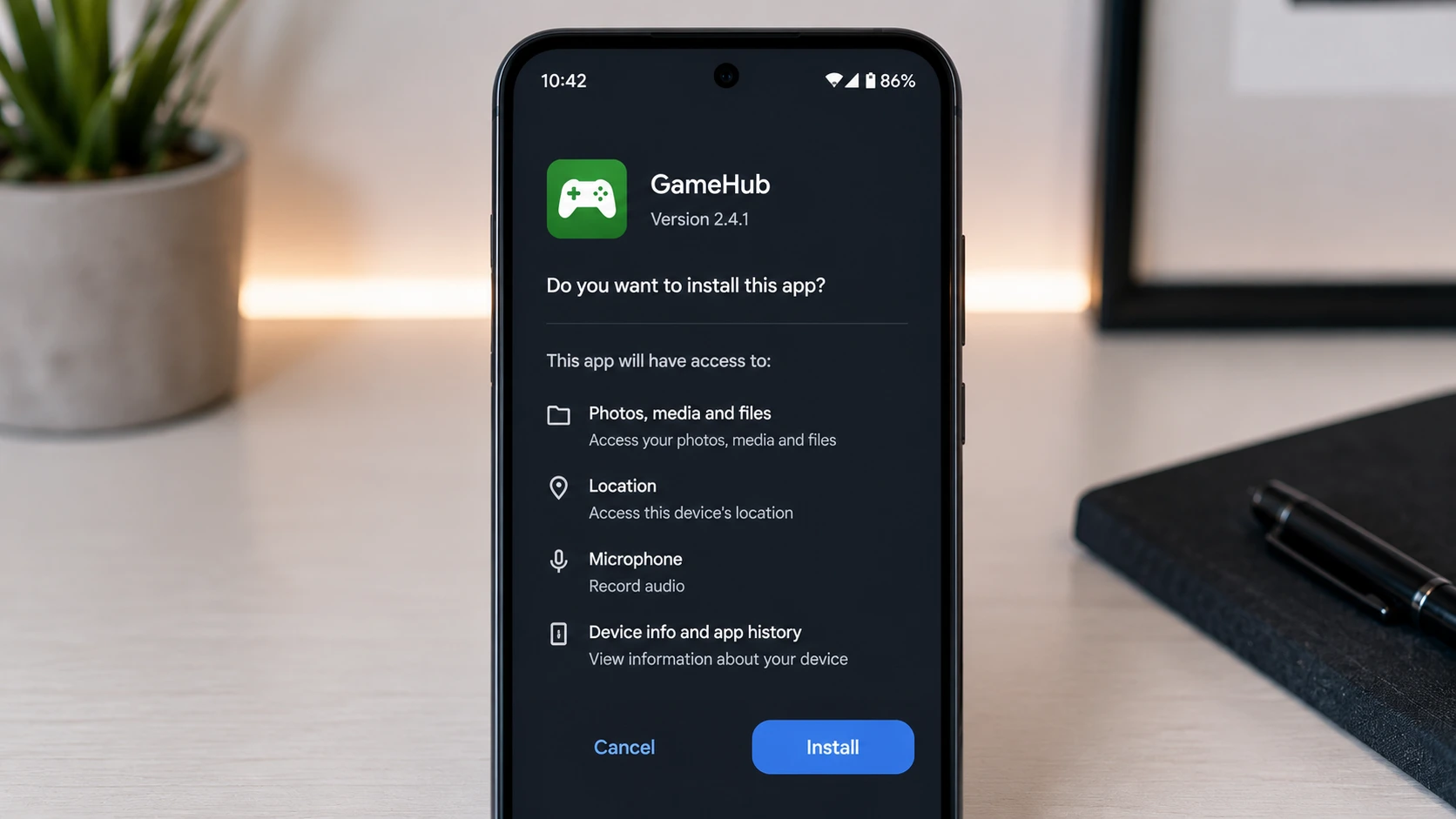
When you tap the APK file, Android will present an installation screen displaying the app’s name, icon, and any special system access permissions it requires.
Take a brief moment to apply common sense here. If you are installing a simple offline calculator app, but the installation screen asks for permission to access your microphone, camera, GPS location, and contact list—stop immediately and tap Cancel. Unnecessary permissions are a major red flag for malicious software.
If the permissions look normal and match the app’s purpose, tap the Install button at the bottom right of your screen. The installation process usually takes anywhere from two to ten seconds. Once finished, you will see an “App installed” confirmation message with two buttons: Done (which returns you to your previous screen) and Open (which launches your brand new app immediately).
Pro Security Tips for Installing APKs
To ensure your sideloading journey remains smooth and stress-free, adopt these simple safety habits used by Android power users:
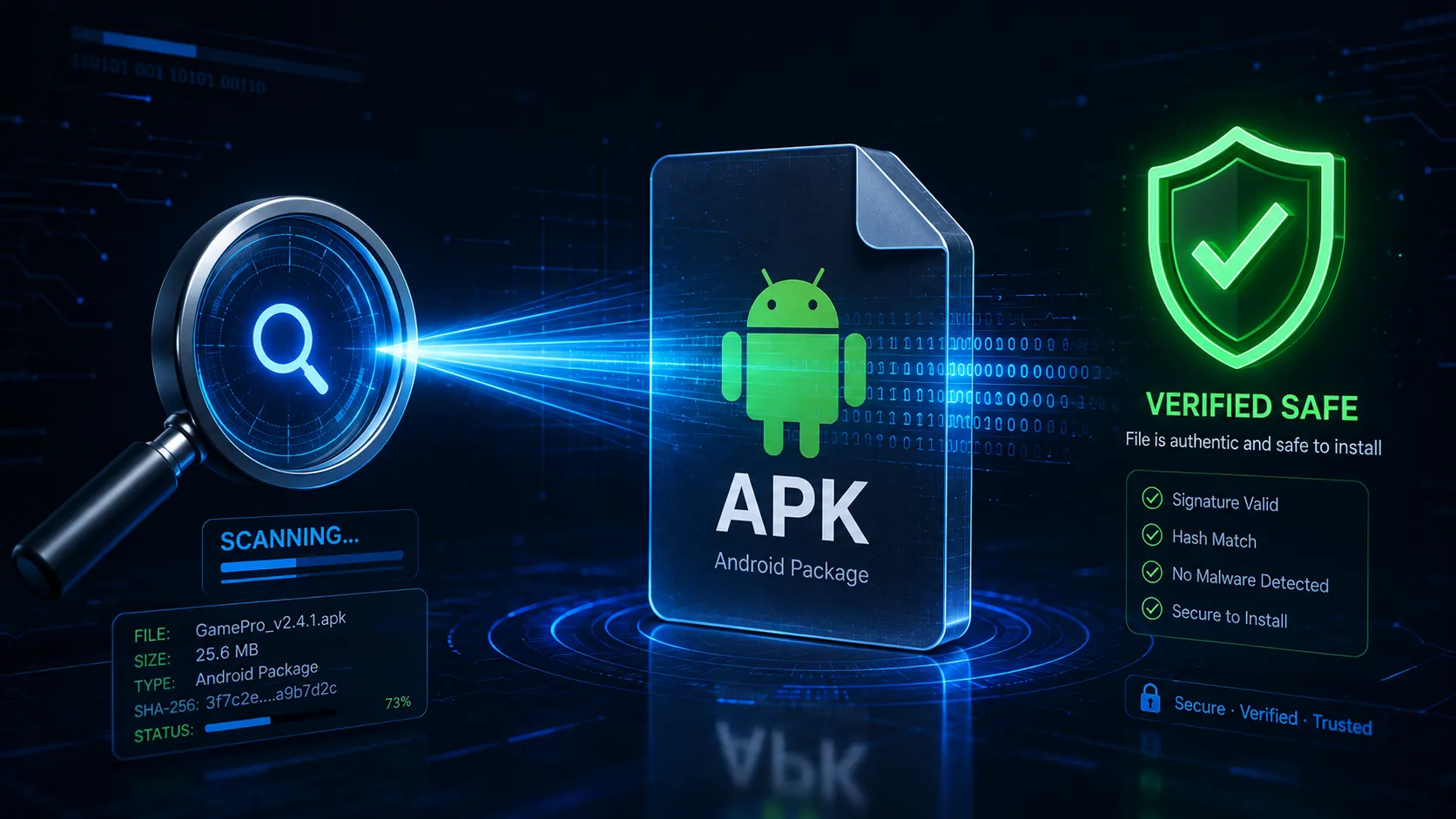
- Verify with VirusTotal: If you ever feel uncertain about an APK file downloaded from a new website, don’t open it right away. Instead, go to VirusTotal.com in your browser and upload the APK file. This free tool scans the package against dozens of top-tier antivirus engines simultaneously.
- Keep Google Play Protect Enabled: Never disable Google Play Protect just to force through an installation that your phone warns you against. Play Protect acts as an active background shield against malicious code, regardless of where the app was downloaded.
- Check Developer Cryptographic Signatures: Reputable sites like APKMirror automatically check cryptographic signatures to ensure that an update APK was signed by the exact same developer who created the original app. If a site warns you that a signature doesn’t match, do not proceed.
- Revoke Permissions After Use: Once you have finished installing your APK, it is good practice to return to Settings > Apps > Special app access > Install unknown apps and toggle off permission for your web browser. Leaving it open indefinitely creates a potential vulnerability if a malicious script ever tries to initiate a download automatically.
Common Mistakes to Avoid
Even experienced Android users sometimes fall into traps when dealing with manual installations. Try to avoid these common missteps:
1. Downloading “Modded” or “Cracked” Paid Apps
It is tempting to search for modded APKs that unlock paid subscription features or grant unlimited in-game currency for free. However, piracy sites are the single largest source of Android malware. Hackers routinely take legitimate popular apps, inject them with background trojans or ransomware, and re-upload them as “free premium mods.” Support developers for their hard work, and never risk your bank accounts for a free mobile game.
2. Confusing APK Files with XAPK or APKM Bundles
Have you ever downloaded an app only to realize the file ends in .xapk, .apkm, or .apks instead of .apk? These are split APK bundles. Modern Android developers often split heavy game assets (like high-res graphics and audio) into separate packages to save bandwidth. Your default Android package installer cannot read raw `.xapk` files directly.
To install these complex bundles, you will need to download a specialized installer tool, such as the official APKMirror Installer app or APKPure app from the Google Play Store.
3. Forgetting to Update Sideloaded Apps Manually
When you install an app via the Google Play Store, it updates automatically in the background whenever the developer fixes a bug. When you install an APK manually from the web, you will not receive automatic updates via Google Play (unless the app shares the exact same package name and cryptographic signature as the Play Store version, which sometimes allows Play Store to take over future updates).
For open-source apps or apps unavailable on the official store, remember to visit your trusted repository periodically to download and install the latest version.
Troubleshooting Common APK Installation Errors
Did things not go according to plan? Don’t panic. Here are simple fixes for the three most common error messages Android users encounter during manual installations:
1. Error: “App Not Installed”
This is by far the most frequent issue users run into. It typically occurs for one of three reasons:
- Signature Conflict: You are trying to install a modified APK over an existing official version of the app already on your phone. Because the cryptographic certificates don’t match, Android blocks the update to prevent app hijacking. Solution: Completely uninstall the existing version of the app from your phone first, then run the newly downloaded APK installer.
- Corrupted Download: The internet connection dropped momentarily during transfer, resulting in an incomplete file. Solution: Delete the downloaded file, clear your browser cache, and download the APK again from scratch.
- Insufficient Storage Space: Your internal storage is completely full, leaving Android no room to unpack the application files. Solution: Free up at least 1GB of storage by deleting old videos, clearing app caches, or emptying your trash folder.

2. Error: “There Was a Problem Parsing the Package”
A “parsing error” means Android cannot read the installation code inside the file. This happens when:
- Incompatible Android OS Version: The app was built specifically for newer Android versions (e.g., requiring Android 13 or higher), but your device is running an older OS like Android 10. You cannot force a newer SDK package onto an incompatible legacy OS.
- Half-Downloaded File: You attempted to tap and open the `.apk` file while your browser was still downloading it in the background. Wait until the download progress bar reaches 100% before launching.
3. Error: “Blocked by Play Protect”
If Google Play Protect displays a large red or yellow pop-up stating the app was blocked, read the warning carefully. If Play Protect specifically identifies the app as known spyware or ransomware, abort immediately! However, Play Protect sometimes flags brand-new open-source apps or niche developer tools simply because they are “unverified developers” lacking widespread installation history. If you are 100% certain of the file’s origin and safety, you can tap More details on the warning prompt and select Install anyway.
Frequently Asked Questions (FAQs)
Is installing an APK file illegal?
No, installing APK files on your own Android device is completely legal. Sideloading is an intended, built-in feature of the Android operating system supported by Google. However, downloading copyrighted commercial games or paid software for free without the developer’s permission (piracy) is illegal in most jurisdictions.
Will installing third-party APKs void my phone’s warranty?
No. Standard sideloading does not void your hardware warranty. Unlike “rooting” your device or installing custom aftermarket ROMs—which modify deep system partitions and can trigger warranty voids—installing an APK operates within normal user-level OS boundaries. You can easily uninstall a sideloaded app at any time just like any regular app.
Can an APK file permanently damage my Android hardware?
It is extremely unlikely for a software application to cause physical damage to your hardware. The real risk lies in software malware: compromising your personal privacy, stealing saved passwords, draining your battery through background cryptocurrency mining, or encrypting your files for ransom. This is why vetting your download websites is paramount.
How do I uninstall an app that I installed via APK?
You uninstall an APK-sourced app using the exact same steps as any regular app! Long-press the app’s icon on your home screen or app drawer and tap Uninstall. Alternatively, navigate to Settings > Apps, locate the application in the list, and tap the Uninstall button.
What is the difference between an APK and an XAPK?
An APK is a standard, single-file Android application package containing everything needed to install the software. An XAPK is an archive file format that combines a base `.apk` file with extra data files (known as OBB data files or split resource files) into one single download. XAPK is commonly used for graphical 3D mobile games to keep everything bundled together neatly.
Conclusion & Next Steps
Learning how to install APK files on Android gives you total mastery over your device. You are no longer restricted by geographic release boundaries, delayed staged rollouts, or restrictive app store policies. By mastering the simple toggle of “Install unknown apps,” you open the doors to a rich world of indie software, beta updates, and powerful open-source utilities.
Remember: freedom requires vigilance. Always source your APK files from highly respected community repositories, inspect app permission requests with a critical eye, and never fall for pirated mod bundles promising impossible freebies.