


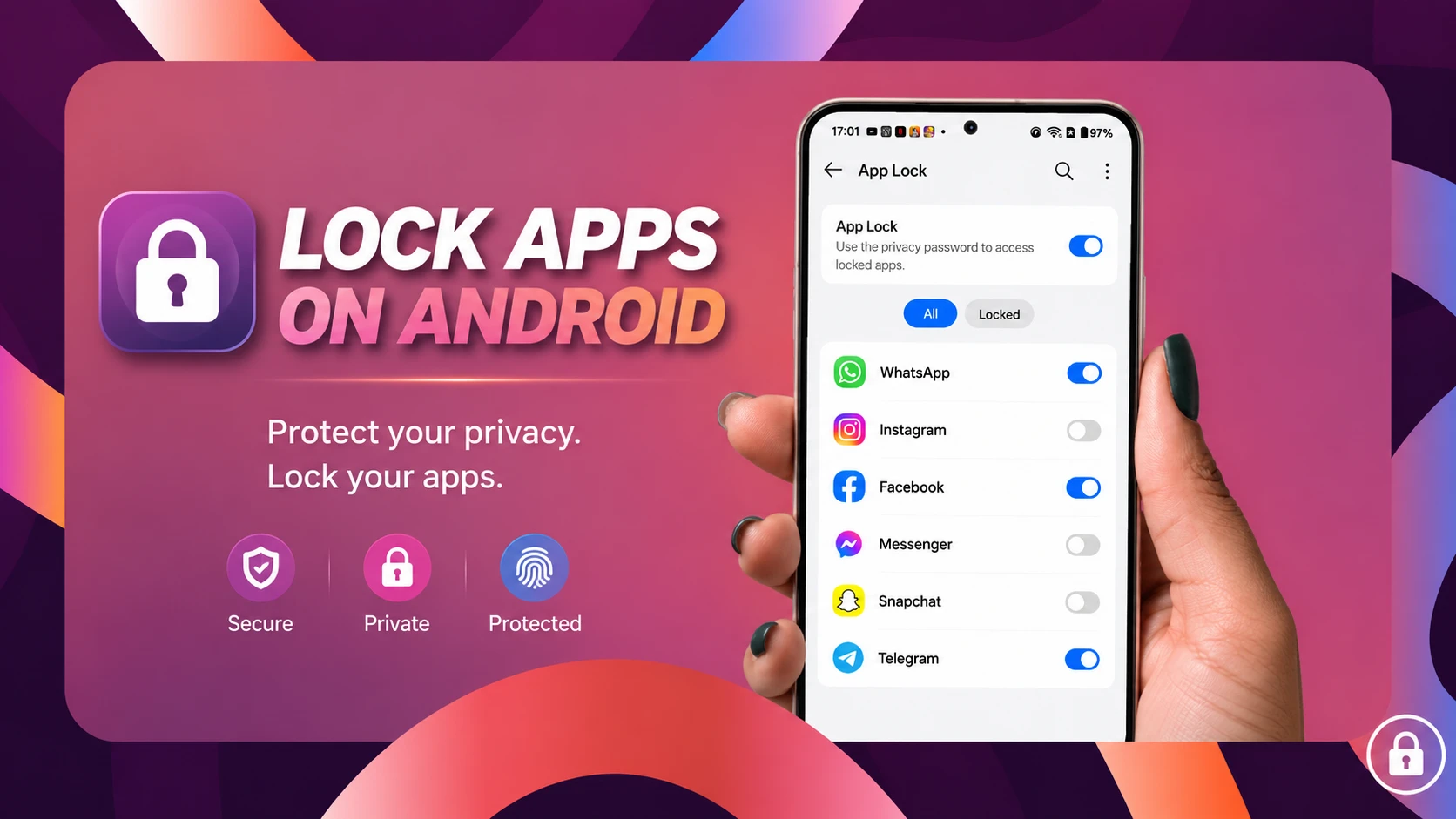
We’ve all experienced that brief moment of panic. You hand your unlocked phone to a friend so they can look at a photo, and suddenly they start swiping. Or maybe you let your child play a mobile game, only to discover later that they’ve accidentally deleted your emails or accessed a payment app. Our smartphones are deeply personal hubs containing our financial data, private messages, and sensitive work documents. Relying solely on your lock screen just isn’t enough anymore.
Learning how to lock apps on Android adds a crucial secondary layer of security to your device. Whether you want to hide your dating apps, secure your mobile banking, or just keep your photo gallery private, putting specific applications behind a PIN, password, or fingerprint lock is the best way to maintain absolute control over your privacy.
In this comprehensive guide, we’ll walk you through the process of locking apps on Android using both built-in features provided by major manufacturers (like Samsung, Xiaomi, and Google) and the most reliable third-party app lockers available on the Google Play Store.
Why You Should Lock Your Apps on Android
Before diving into the tutorials, it’s worth understanding why individual app locking is a game-changer for your digital security. While your main lock screen password protects your phone when it’s idle, an unlocked phone is a wide-open door. Here are the primary benefits of locking apps on Android:
- Financial Protection: Banking apps, crypto wallets, and mobile payment platforms like Google Wallet or PayPal require maximum security. A secondary app lock prevents unauthorized transactions if someone borrows your device.
- Messaging Privacy: Keep your WhatsApp, Telegram, and SMS threads safe from snooping friends, family members, or colleagues.
- Childproofing: If you frequently hand your phone to your kids, locking the Google Play Store, browser, and system settings prevents accidental app purchases and exposure to inappropriate content.
- Workplace Security: For those using a single device for personal and professional use, locking work email and Slack ensures sensitive company data isn’t exposed during off-hours.
How to Lock Apps Using Built-In Android Features
The easiest and safest way to secure your applications is by using the native tools built directly into your phone’s operating system. Because these features are baked into the system UI, they are incredibly secure, battery-efficient, and free from intrusive advertisements.
Samsung Galaxy (Secure Folder)

Samsung offers one of the most robust privacy solutions on the market called Secure Folder. Rather than just throwing a lock screen over an existing app, Secure Folder creates an entirely separate, encrypted sandbox environment on your device.
- Open your Samsung Settings app.
- Scroll down and tap on Security and privacy.
- Select More security settings, then tap Secure Folder.
- Sign in with your Samsung account and follow the on-screen prompts to set up a PIN, password, or fingerprint.
- Once setup is complete, open the Secure Folder from your app drawer.
- Tap the + (Add) icon to move existing apps into the folder or download new ones directly into the encrypted space.
Apps inside the Secure Folder require authentication every time they are accessed, and their data is completely isolated from the rest of your phone.
Xiaomi, Redmi, & POCO (App Lock)
Devices running Xiaomi’s HyperOS (or older MIUI versions) have a dedicated App Lock feature that is straightforward to configure.
- Open the native Security app (usually found on your home screen).
- Scroll down to the utility section and tap on App Lock.
- Tap Turn on and set a distinct pattern or PIN. (We highly recommend linking your Mi Account so you can reset the password if you forget it).
- You can now toggle the switch next to any app you want to lock.
- To use your fingerprint or face unlock for faster access, tap the Settings gear in the top right corner of the App Lock screen and enable biometric unlocking.
OnePlus, OPPO, & realme (App Lock)
Because OnePlus, OPPO, and realme share similar software architectures (OxygenOS, ColorOS, and realme UI), the process for locking apps is practically identical across all three brands.
- Navigate to Settings > Privacy.
- Tap on the Privacy tab at the top, then select App Lock.
- Toggle the master switch to enable the feature. You will be prompted to set up a “Privacy Password,” which should be different from your lock screen PIN.
- Once configured, scroll through your installed apps and toggle the switch for any application you want to secure.
- You can also go into the App Lock settings to dictate whether the app locks immediately upon exiting, or only after the screen turns off.
vivo & iQOO (App Encryption)
Devices running Funtouch OS handle app security through a feature called App Encryption.
- Open Settings and tap on Security.
- Select Privacy & app encryption.
- Set a 6-digit privacy password and answer the security questions. Do not skip the security questions, as they are your only recovery method.
- Tap on App encryption.
- Select the apps you wish to lock. You can also specify the “App lock time” to customize how quickly the app secures itself after you leave it.
Google Pixel & Stock Android (Private Space)
For years, stock Android lacked a native app locker. However, with recent Android updates (specifically starting from Android 15), Google introduced Private Space. This feature acts similarly to Samsung’s Secure Folder.
- Open Settings > Security & privacy.
- Scroll down and tap on Private space.
- Follow the setup wizard to create a separate profile. You can choose to use your existing Google account or a separate one for added anonymity.
- Set a unique PIN or fingerprint for this space.
- Once activated, your Private Space sits at the very bottom of your app drawer behind a lock icon. You can install apps directly into this space, keeping them hidden and locked away from the rest of your phone.
Best Third-Party App Lockers for Android

If you are using an older device or a brand that doesn’t include a native app locker, the Google Play Store has plenty of excellent alternatives. When choosing a third-party locker, it’s vital to pick reputable developers to avoid spyware or apps bloated with ads.
1. AppLock by DoMobile Lab
With hundreds of millions of downloads, this is the undisputed king of third-party lockers. It can lock specific apps, system settings, incoming calls, and even toggle switches (like Bluetooth and Wi-Fi). It also features an “Intruder Selfie” mode that snaps a photo of anyone who enters the wrong password.
2. Norton App Lock
Developed by the renowned cybersecurity company, Norton App Lock is entirely free, ad-free, and incredibly reliable. It’s a no-nonsense app that does exactly what it advertises: lets you lock apps with a PIN, pattern, or fingerprint. It also includes anti-theft measures to prevent unauthorized uninstallation.
3. Bitdefender Mobile Security
If you want comprehensive protection, Bitdefender’s mobile suite includes an excellent App Lock feature alongside its malware scanner and VPN. While it requires a subscription for full features, it’s one of the most robust security tools available for Android.
Common Issues & Troubleshooting App Locks
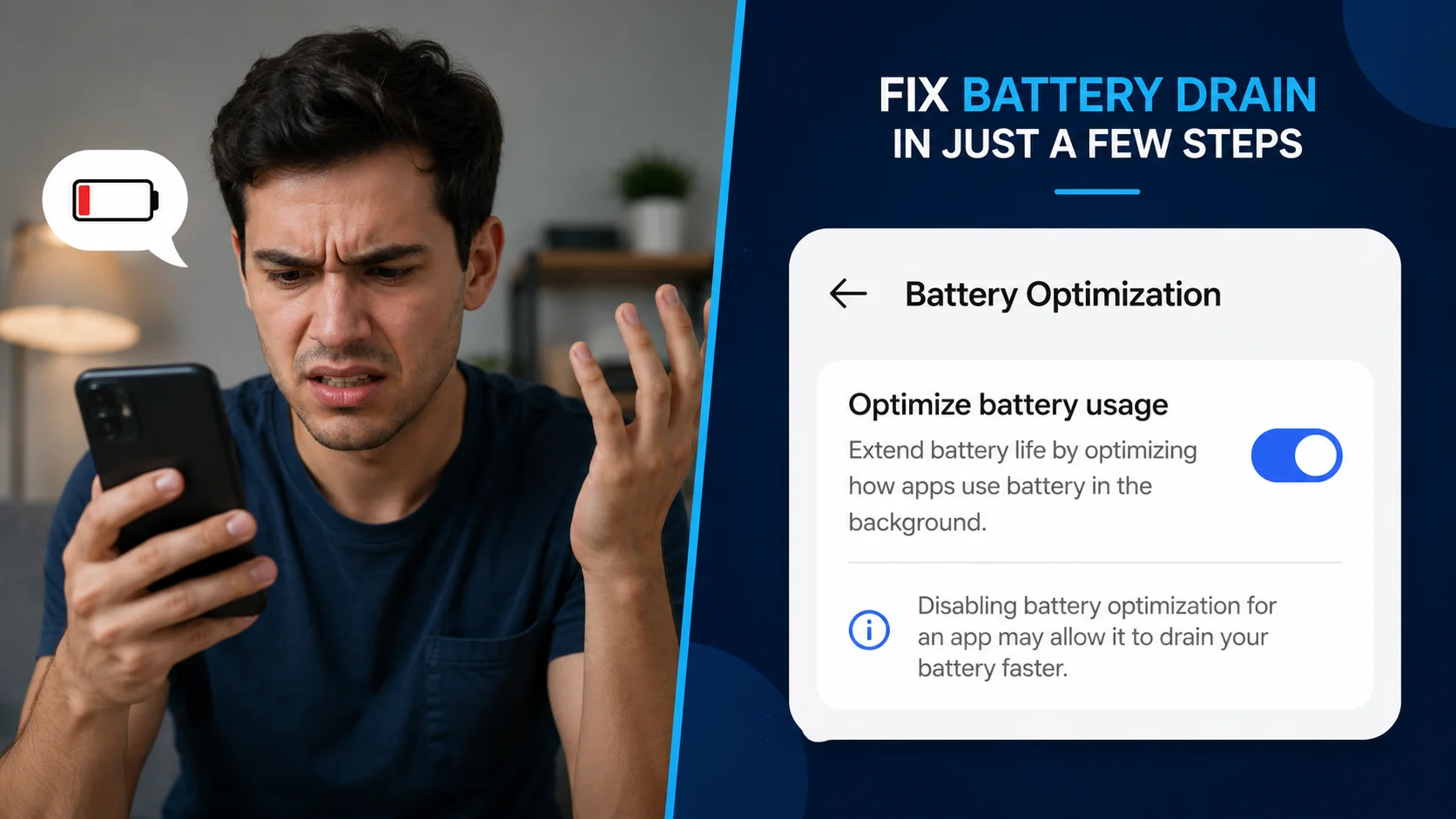
Setting up an app lock is generally smooth, but aggressive battery management systems on modern Android phones can sometimes cause hiccups. Here are the most common issues and how to fix them:
The App Locker Keeps Turning Off or Crashing
If you are using a third-party app locker and it suddenly stops asking for a password, your Android system is likely killing the app in the background to save battery.
- The Fix: Go to Settings > Apps > [Your App Locker] > Battery. Change the battery optimization setting to Unrestricted. Additionally, lock the app in your recent apps menu so the system doesn’t clear it from memory.
I Forgot My App Lock Password!
Forgetting your privacy password can be stressful, especially if it’s separate from your main lock screen PIN.
- The Fix: Most native app lockers will prompt you to link a recovery email or answer security questions during setup. Tap “Forgot Password” on the lock screen and follow the prompts. If you skipped this step, you might have to factory reset your phone to regain access, as secure environments are encrypted by design.
Android Security Best Practices
Locking apps on Android is just one piece of the privacy puzzle. To ensure your digital life remains truly secure, follow these best practices:
- Use Distinct Passwords: Never make your app lock PIN the same as your lock screen PIN. If someone shoulder-surfs your main PIN, your locked apps will still be compromised.
- Hide Notifications: An app lock prevents someone from opening WhatsApp, but it doesn’t stop message previews from appearing in the notification shade. Go to your phone’s notification settings and choose to hide notification content on the lock screen and for specific locked apps.
- Prevent Uninstallation: If you use a third-party app locker, ensure you grant it “Device Administrator” privileges. This prevents a snooper from simply uninstalling the app locker to bypass the security.
Frequently Asked Questions (FAQs)
Does locking apps drain my Android’s battery?
Built-in app lockers (like Samsung Secure Folder or Xiaomi App Lock) have virtually zero impact on battery life since they are integrated into the OS. Third-party apps running in the background may cause a negligible battery drain, but it is rarely noticeable on modern smartphones.
Can I lock apps using my fingerprint or face unlock?
Yes. Almost all native and reputable third-party app lockers allow you to link your device’s biometric data. This makes unlocking apps instantaneous for you while keeping them completely inaccessible to anyone else.
Is it possible to completely hide an app instead of just locking it?
Absolutely. Features like Samsung’s Secure Folder, OnePlus’s Hidden Space, and Google’s Private Space allow you to remove the app icon from your main app drawer entirely. The app will only be visible when you enter the designated secure environment.
Can I lock the Settings app to prevent changes?
Yes, locking the Settings app or the Google Play Store is highly recommended if you are handing your phone to a child. This prevents them from altering system configurations or installing unauthorized games.
Conclusion
In an era where our smartphones are digital extensions of our lives, proactive privacy measures are no longer optional. Knowing how to lock apps on Android ensures that your banking details, personal photos, and private conversations remain exactly that—private. Whether you utilize robust built-in features like Samsung’s Secure Folder and Google’s Private Space, or opt for a trusted third-party solution like Norton App Lock, taking five minutes to secure your apps today can save you from a massive headache tomorrow.
Take control of your digital privacy, set up your app locks, and enjoy the peace of mind that comes with knowing your personal data is completely locked down.