

One of the single greatest advantages of owning an Android phone is control over your software experience. If you are unhappy with the layout, grid size, or overall feel that your phone’s manufacturer shipped out of the box, you do not have to accept it. Installing a custom Android launcher gives you instant power to reshape your entire home screen, app drawer, and navigation gestures.
Whether you want an ultra-minimalist text layout to curb screen time, a buttery-smooth stock Pixel design, or a complex grid setup where every icon can be resized and re-themed, there is an app tailored to your exact taste. Below, we review the best Android launchers currently available, breaking down their stand-out features, pros, cons, and performance impact so you can build your ideal mobile setup.
What Is an Android Launcher and Why Should You Use One?
An Android launcher is the core system interface application that controls your home screen, app drawer, dock, and app icons. It is what launches your applications and manages how you interact with your phone on a daily basis.
Default manufacturer interfaces (like Samsung’s One UI, Xiaomi’s HyperOS, or Motorola’s My UX) are built to cater to general audiences. However, they often lock you into rigid grid layouts, include unwanted news feeds, or limit how custom icon packs look. Switching to a third-party launcher allows you to:
- Apply third-party icon packs to unify your app styling.
- Set custom swipe gestures (like swiping down anywhere on the screen to pull down notifications).
- Hide unused bloatware apps without uninstalling them.
- Optimize phone performance on older devices by stripping away heavy manufacturer animations.
- Reduce digital distractions with minimalist, text-first layouts.
Deep Reviews: The Best Android Launchers
1. Niagara Launcher – Best for One-Handed Minimalism

Niagara Launcher has quickly established itself as one of the most innovative home screen replacements on the Play Store. Rather than forcing you into a traditional multi-page grid, Niagara replaces your home screen with an elegant, ergonomic vertical list backed by a fast alphabet scroll wave on the edge of your display.
Features & Customization: Niagara integrates incoming notification previews directly into your favorite app list, letting you read and respond to messages without opening the full application. It also features built-in media controls, a minimalist weather and calendar widget, and support for custom icon packs and adaptive colors.
Performance & Compatibility: Extremely light on system resources. RAM usage typically stays between 150MB and 220MB, making it smooth even on budget or aging devices. It handles modern Android gesture navigation seamlessly on almost all brands.
- Pros: Unrivaled one-handed usability; completely ad-free; built-in notification triage; clean aesthetic.
- Cons: Pro subscription is required to unlock widget stacks and advanced weather features; limited options if you want traditional multi-widget layouts.
2. Smart Launcher 6 – Best for Smart Organization
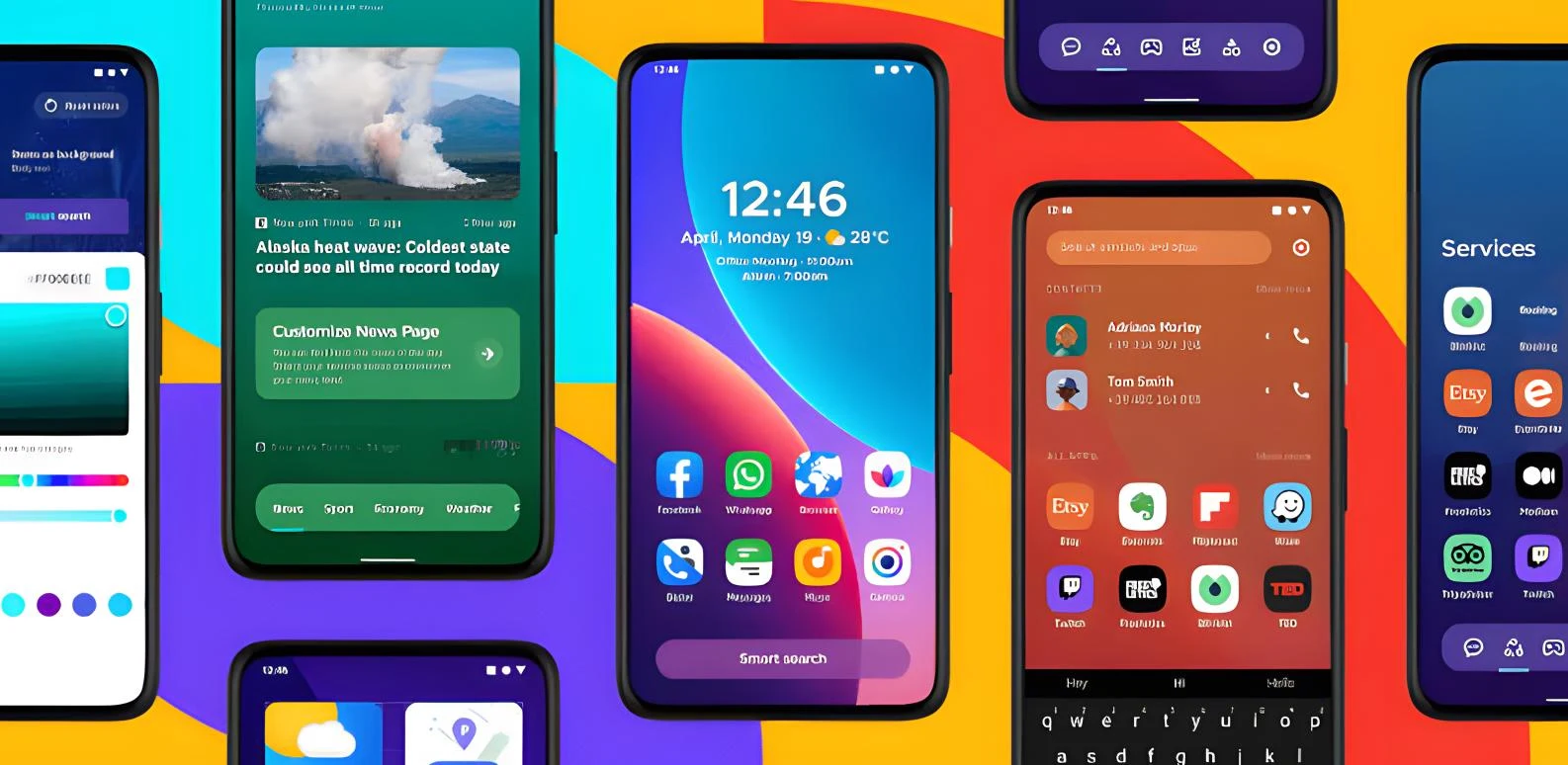
If you have dozens of apps installed and hate spending time organizing them into folders manually, Smart Launcher 6 is built for you. It combines a highly flexible home screen with an intelligent app drawer that automatically categorizes your apps into clear tabs like Communication, Media, Internet, and Games.
Features & Customization: Smart Launcher 6 uses a gridless placement engine. You can resize, stack, and move widgets or app icons anywhere without feeling restricted by a strict row-and-column layout. It also includes Material You adaptive colors, custom pop-up widgets attached to app icons, and an ambient theme that shifts based on your wallpaper colors.
Performance & Compatibility: Runs remarkably well despite its rich feature set. Memory footprint averages around 250MB to 300MB. It operates smoothly across Android 9 through Android 15+ devices.
- Pros: Automatic app categorization saves setup time; gridless layout offers creative design freedom; rich built-in widget library.
- Cons: The sheer number of settings can require a slight learning curve; premium features require a license.
3. Nova Launcher – The Classic Customization Titan
For over a decade, Nova Launcher was considered the gold standard for custom home screens. It remains one of the most feature-packed, granular options available for power users who want complete control over subgrid icon positioning, folder styles, animation speeds, and gesture shortcuts.
Features & Customization: Nova offers infinite grid options, notification badges, dock customization, app hiding, and custom swipe actions on individual app icons (e.g., swiping up on the Camera icon launches Google Photos). Backup and restore tools allow you to transfer your layout across phones in seconds.
Performance & Compatibility: Highly optimized for speed. However, potential users should note that project ownership changes and development pace shifts mean users seeking open-source or frequently updated alternatives often compare it with options like Lawnchair.
- Pros: Unmatched depth of settings and layout tweaks; full backup/restore compatibility; endless gesture shortcuts.
- Cons: Nova Prime key required for full feature set; default setup can feel generic until heavily tweaked.
4. Lawnchair – Best Free Stock Android Experience
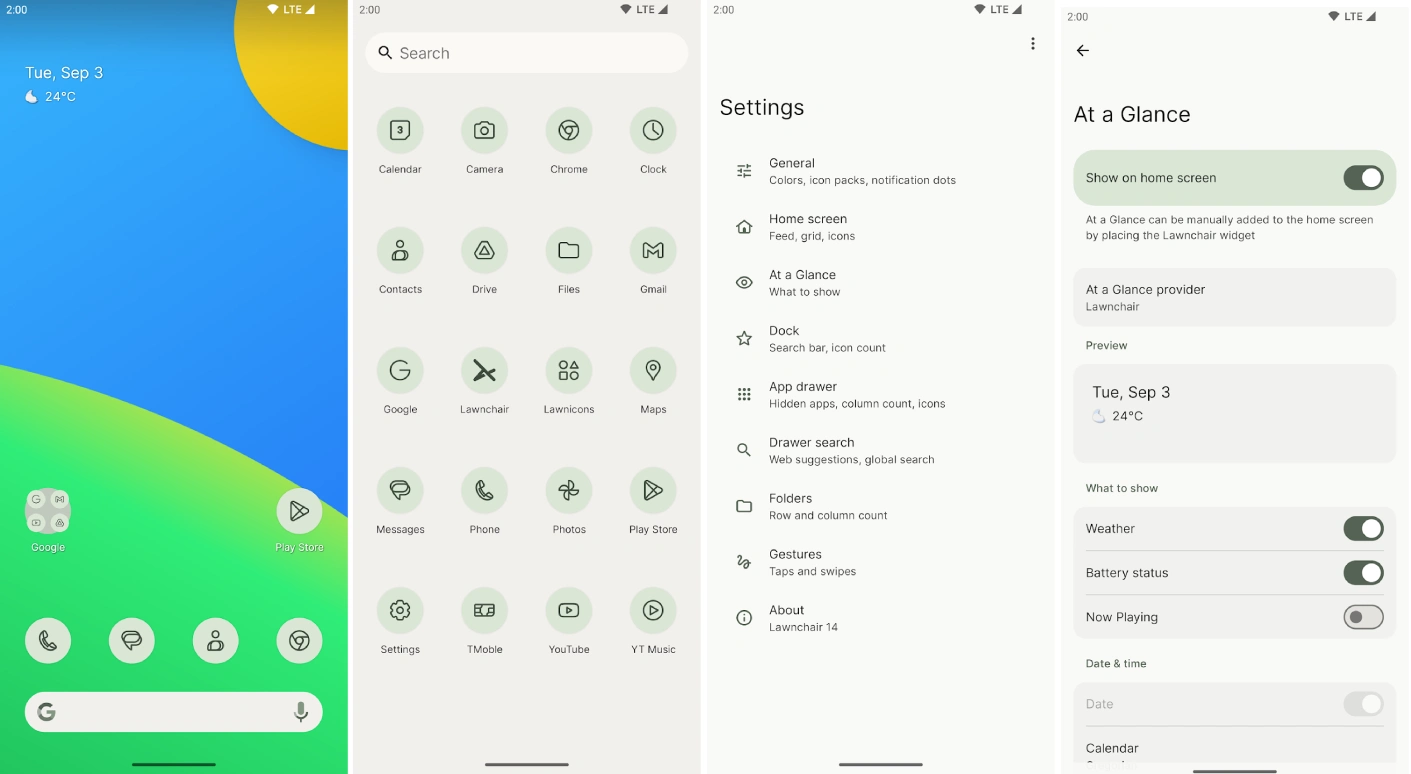
If you love the clean, intuitive feel of Google’s Pixel devices but do not own a Pixel phone—or want extra customization options that Google restricts—Lawnchair is an outstanding open-source solution.
Features & Customization: Lawnchair takes the foundation of the stock Android Launcher3 source code and adds essential power-user tweaks. You get full Material You dynamic color support, customizable search bar placements, icon shape adjustments, app hiding, and integration with the Google Discover feed (via the Lawnfeed plugin).
Performance & Compatibility: Exceptionally lightweight, using as little as 120MB to 200MB of RAM. It provides a lag-free experience on both high-end flagship phones and entry-level handsets.
- Pros: 100% free and open-source; no ads or hidden paywalls; authentic Pixel look and feel with extra customization.
- Cons: Updates depend on community open-source release cycles; fewer extreme layout features than Smart Launcher.
5. Microsoft Launcher – Best for Productivity & Ecosystem Integration
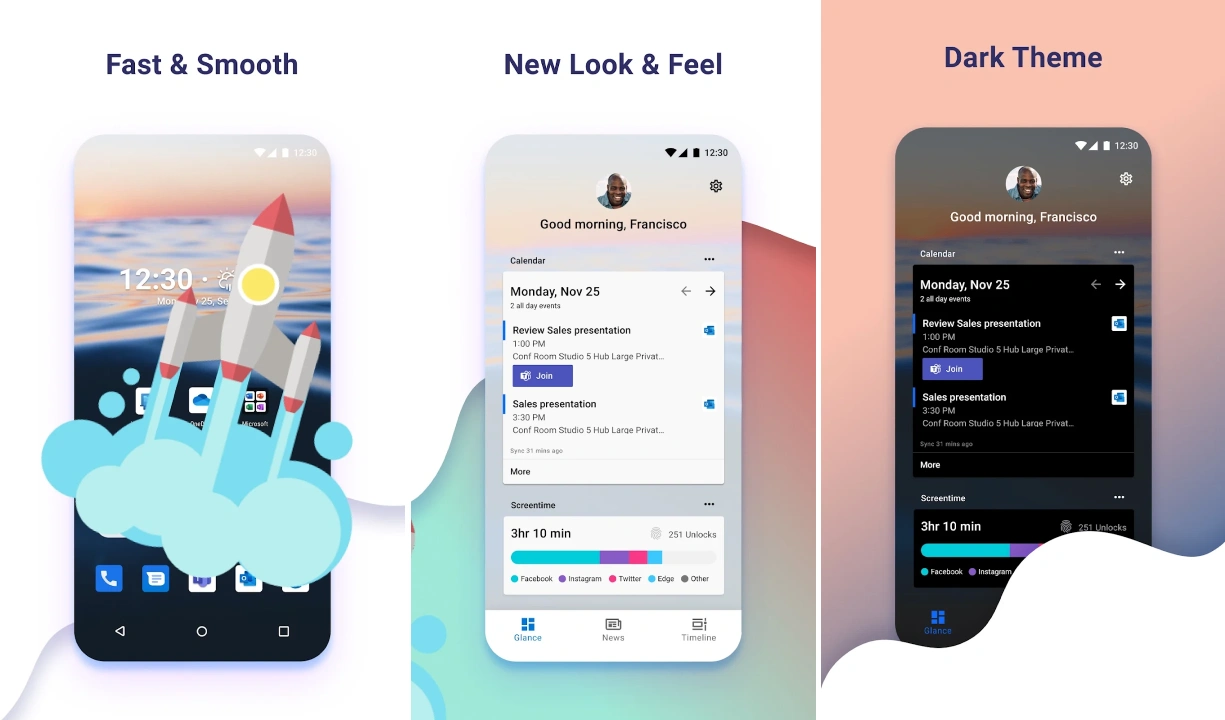
Microsoft Launcher turns your Android phone into a productivity hub, especially if you rely on Windows PCs, Microsoft 365, or Outlook for work or school.
Features & Customization: The highlights here are the customizable Glance Feed—which swipes in from the left to display calendar events, Sticky Notes, To-Do lists, and news—and Bing daily wallpaper integration. It also offers flexible grid sizes, custom icon packs, and expandable dock options.
Performance & Compatibility: Very stable on large-screen phones, foldables, and tablets. RAM usage is slightly higher (250MB–350MB) due to background sync services with your Microsoft account.
- Pros: Seamless sync with Windows Sticky Notes, Tasks, and Outlook; excellent layout scaling for large screens; completely free.
- Cons: Glance feed can feel cluttered if you do not use Microsoft services; slightly heavier on background resources.
6. Olauncher – Best for Digital Detox

If you find yourself opening social media apps mindlessly every time you unlock your screen, Olauncher offers a radical cure. It strips away all colorful app icons, notification badges, and widgets, leaving you with a plain text-based interface.
Features & Customization: You pick up to 4–8 text shortcuts for your main screen. Swiping up opens a simple, searchable text list of all your apps. You can customize fonts, text alignment, and hide status bars to minimize visual stimulation.
Performance & Compatibility: Extremely fast and ultra-lightweight. Uses under 80MB of RAM and virtually zero battery background consumption.
- Pros: Drastically reduces phone screen time; open-source and free of ads; virtually zero performance impact.
- Cons: No visual widgets or icon pack support; strictly for users who want digital minimalism.
Quick Comparison Table
Here is a side-by-side snapshot of how these top Android launcher apps stack up against each other:
| Launcher Name | Best For | Customization Level | RAM Impact | Pricing Model |
|---|---|---|---|---|
| Niagara Launcher | One-handed use & speed | Moderate (Minimalist focus) | Low (150-220 MB) | Free / Pro Subscription ($13.99/yr) |
| Smart Launcher 6 | Auto-organization & design | High (Gridless placement) | Moderate (250-300 MB) | Free / In-App Purchases |
| Nova Launcher | Power users & granular tweaks | Very High (Grid & gestures) | Moderate (200-300 MB) | Free / Prime ($4.99 one-time) |
| Lawnchair | Clean Pixel stock look | Moderate to High | Low (120-200 MB) | 100% Free & Open-Source |
| Microsoft Launcher | Work & PC productivity | High | Moderate-High (250-350 MB) | 100% Free |
| Olauncher | Digital detox & screen-time reduction | Low (Text only) | Ultra Low (<80 MB) | 100% Free & Open-Source |
Best Android Launcher Recommendations by User Type
If you are still undecided, match your current priority with these recommendations:
- For speed and modern aesthetic: Go with Niagara Launcher. Its vertical wave navigation makes navigating tall modern screens effortless.
- For the cleanest free experience: Choose Lawnchair. It delivers the sleek Google Pixel look without cost or ad pressure.
- For clutter-free automatic sorting: Pick Smart Launcher 6. It organizes new app downloads automatically.
- For cutting down phone addiction: Try Olauncher. Stripping away bright icons helps reduce dopamine loops instantly.
How to Choose the Right Launcher for You
Before installing a new custom Android home screen, consider these three core factors:
- Device Hardware Specs: If you are running an entry-level smartphone with 3GB or 4GB of RAM, pick a lightweight launcher like Lawnchair or Niagara. Heavier launchers with live widgets and feeds may cause background reloads.
- Gesture Navigation Compatibility: Modern Android gesture navigation (swiping up to go home or swiping inward to go back) works best on launchers built on modern Android foundations. Make sure to test how smooth the recents animation feels on your specific phone brand.
- Your Customization Goals: Decide whether you want to spend hours tweaking subgrids and gestures, or if you prefer a plug-and-play solution that looks great immediately.
How to Install and Change Your Default Android Launcher
Changing your default launcher is a completely safe process that takes less than two minutes. It does not delete your apps or erase personal data.
Step-by-step installation guide:
- Open the Google Play Store and search for the launcher of your choice (e.g., Niagara Launcher or Smart Launcher 6).
- Tap Install and wait for the download to complete.
- Open your phone’s Settings app.
- Navigate to Apps (or Apps & Notifications) > Default Apps.
- Tap on Home app (sometimes listed as Default Home Screen).
- Select your newly installed launcher from the list.
- Press your phone’s Home button or swipe up to land on your brand-new interface!
Note: If you ever want to revert back to your factory setup, simply return to this same menu and select your phone’s original system launcher (e.g., One UI Home or System Launcher).
Frequently Asked Questions (FAQs)
Do custom Android launchers drain more battery?
Generally, no. Well-optimized launchers like Niagara, Lawnchair, and Olauncher use minimal system background tasks and draw no noticeable battery. However, if you add dozens of animated live wallpapers and heavy third-party widgets, battery drain will increase slightly.
Will installing a new launcher delete my apps or data?
Not at all. Launchers only change the visual presentation and organization of your home screen and app drawer. All your installed applications, photos, messages, and settings remain completely intact.
Can I switch back to my original launcher whenever I want?
Yes. You can switch back to your factory default launcher at any time via Settings > Apps > Default Apps > Home app, or simply uninstall the third-party launcher app from your device.
Why do system gesture animations sometimes lag with custom launchers?
On certain manufacturer Android builds (particularly older versions of Android 10 and 11), Google restricted third-party launcher access to system gesture transitions. Modern phones running Android 13, 14, or 15 have largely fixed these issues, making gesture navigation smooth across popular launchers.
Final Thoughts
Your smartphone is the device you interact with most throughout the day. Sticking with a boring, cluttered stock home screen limits what your Android phone can do for you. Whether you choose Niagara Launcher for swift one-handed navigation, Lawnchair for a clean Pixel aesthetic, or Olauncher to stay focused, switching your home screen replacement takes less than two minutes and breathes fresh life into your mobile device.
Try out two or three of the best Android launchers from this list today to see which layout best fits your personal daily rhythm!