


Android is currently the most popular operating system in the world, powering billions of smartphones and tablets. Its open source nature offers unmatched flexibility, allowing users to customize their devices to their exact preferences. However, this openness comes with a persistent downside: advertisements. Whether you are browsing the web, playing a mobile game, or catching up on the latest news, digital ads are an omnipresent part of the mobile ecosystem.
Fundamentally, advertisements exist because they are the economic engine of the free internet. App developers and website publishers rely on ad revenue to fund their operations, pay content creators, and offer products at no upfront cost to the user. While non-intrusive ads are generally acceptable, the modern digital advertising landscape has increasingly pivoted toward aggressive, tracking-heavy, and disruptive formats.
Excessive ads do far more than simply clutter your screen. They have a quantifiable negative impact on several critical aspects of your Android device:
- User Experience (UX): Full-screen pop-ups, autoplay videos, and sticky banners interrupt your workflow, slow down reading, and cause accidental clicks that redirect you to unwanted storefronts.
- Privacy Intrusion: Most modern ads are powered by programmatic behavioral trackers. These scripts quietly collect your location, browsing habits, device model, and search history to build an intrusive advertising profile.
- Battery Life: Loading, rendering, and processing animated or video-based ads forces your device’s GPU and CPU to work harder. This background resource consumption accelerates battery depletion.
- Performance & Data Usage: Heavy advertising scripts consume significant network bandwidth. If you are on a limited mobile data plan, ads are actively costing you money while slowing down page load speeds on slower networks.
Fortunately, you do not have to accept this compromise. This comprehensive guide will walk you through the most effective, verified methods to block ads on Android, ranging from built-in browser settings to advanced network-level blocks, ensuring a cleaner, faster, and more secure mobile experience.
Why Am I Seeing So Many Ads on Android?
To successfully eliminate advertisements, it helps to understand where they originate. Android ads generally fall into four distinct categories, each requiring a slightly different defensive strategy.
1. Ads in Mobile Apps
The “freemium” model dominates the Google Play Store. Developers distribute their games or utility apps for free, but integrate Mobile Software Development Kits (SDKs) from networks like Google AdMob or Unity Ads. These SDKs display banner ads at the bottom of the screen, interstitial ads between gameplay levels, or rewarded video ads that you must watch to unlock in-game items.
2. Browser Advertisements
When you visit websites via mobile browsers, you encounter standard web advertising. This includes display ads, native content recommendations, and highly disruptive pop-under or redirect loops. Many of these ads are poorly optimized and cause web pages to jitter or lag as they load asynchronously.
3. Adware and Malicious Applications
If you are experiencing full-screen ads that pop up on your Android home screen, lock screen, or while using unrelated applications, your device likely has adware. Adware is a type of malicious software or a rogue application that runs hidden background processes strictly designed to force-feed advertisements to the user. This usually happens after downloading sketchy utilities, cracked apps, or files from unofficial third-party sources.
4. Push Notifications
Many users accidentally grant permission to malicious or low-quality websites to send them push notifications. These websites then abuse the Android notification system to send constant streams of spam, fake virus warnings, and adult dating advertisements directly to your device’s notification tray, even when your browser is closed.
Method 1: Block Ads in Google Chrome
Google Chrome is the pre-installed default browser for the vast majority of Android devices. While Google relies heavily on ad revenue and does not allow full extension support (like uBlock Origin) on Chrome for Android, the browser does include built-in features to mitigate the most egregious and intrusive types of advertisements.
Step-by-Step: Disable Intrusive Notifications and Pop-Ups
Follow these steps to clean up your browsing experience within Chrome:
- Open Google Chrome on your Android device.
- Tap the three vertical dots (Menu) in the top-right corner and select Settings.
- Scroll down and tap on Site settings.
- Tap on Pop-ups and redirects and toggle the switch to the Off position (ensuring it says “Block sites from showing pop-ups and redirects”).
- Go back to the Site settings menu, tap on Intrusive ads (or simply Ads on some versions), and turn the toggle Off to block ads on sites known to show disruptive or misleading advertisements.
Leveraging Safe Browsing for Added Security
Malicious ads often try to trick you into downloading harmful files or entering credentials on phishing pages. Enabling Enhanced Safe Browsing adds a proactive layer of protection against these threats.
- Inside Chrome’s Settings, tap on Privacy and security.
- Select Safe Browsing.
- Choose the Enhanced protection tier. This option provides faster, proactive protection against dangerous websites, downloads, and extensions by sharing real-time threat intelligence with Google.

Method 2: Use a Private DNS Ad Blocker
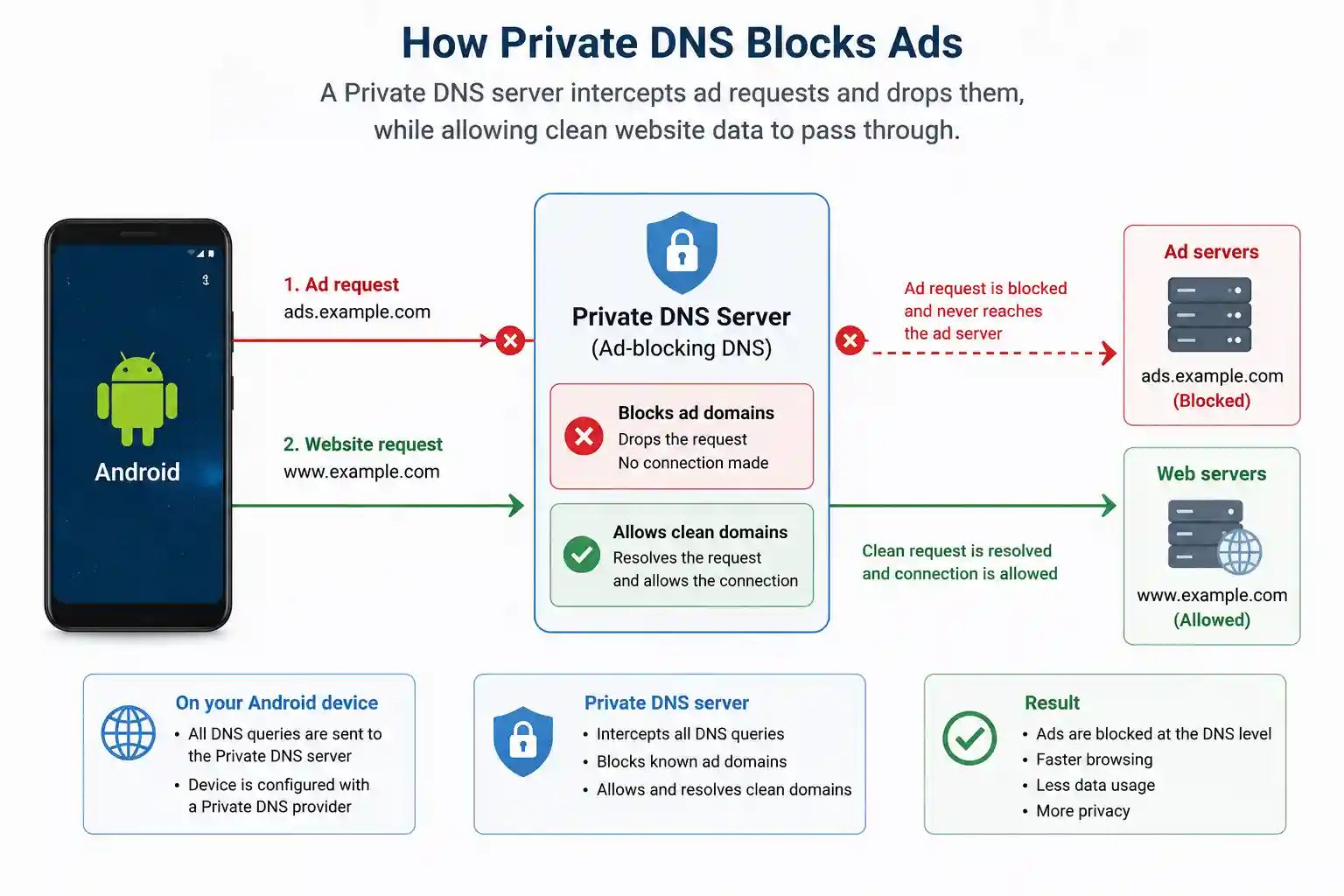
One of the most elegant, powerful, and resource-efficient ways to block ads across your entire Android device is by utilizing the native Private DNS feature. Introduced in Android 9 (Pie), this feature allows you to route all of your device’s internet traffic through a custom, encrypted Domain Name System (DNS) provider.
When a website or mobile application tries to load an advertisement, it sends a request to an ad-serving domain (such as ads.doubleclick.net). An ad-blocking Private DNS server intercepts this request, references its massive blacklists, and refuses to resolve the domain. As a result, the advertisement never downloads, leaving the space blank and saving your data.
How to Configure Private DNS on Android
This method requires no app installations and works seamlessly on both Wi-Fi and mobile data networks. Configuration steps may vary slightly depending on your smartphone manufacturer (Samsung, Google, Xiaomi, etc.), but the core process remains identical:
- Open your device’s main Settings app.
- Navigate to Network & internet (on Samsung devices, tap Connections, then More connection settings).
- Tap on Private DNS. (If you cannot find it, simply use the search bar at the top of your Settings app and type “Private DNS”).
- Change the selection from “Automatic” or “Off” to Private DNS provider hostname.
- Enter one of the following hostnames based on your preferences:
dns.adguard-dns.com— Standard option; blocks advertisements, analytics trackers, and phishing domains system-wide.dns-family.adguard-dns.com— Family protection option; blocks all ads, trackers, and filters out adult content across the device.
- Tap Save to apply the changes.
Advantages and Limitations
While Private DNS is highly recommended, it is vital to weigh its pros and cons:
- Advantages: Completely free, requires zero background battery usage, blocks ads inside many free apps and games, and protects your entire system without requiring third-party background applications.
- Limitations: It cannot block first-party advertisements. For example, because YouTube serves its ads from the exact same domain structures as its video content, a DNS blocker cannot distinguish between the two. Therefore, it will not block YouTube video ads. Additionally, it may occasionally leave empty gray boxes where web ads used to sit.
Method 3: Install an Ad Blocking Browser
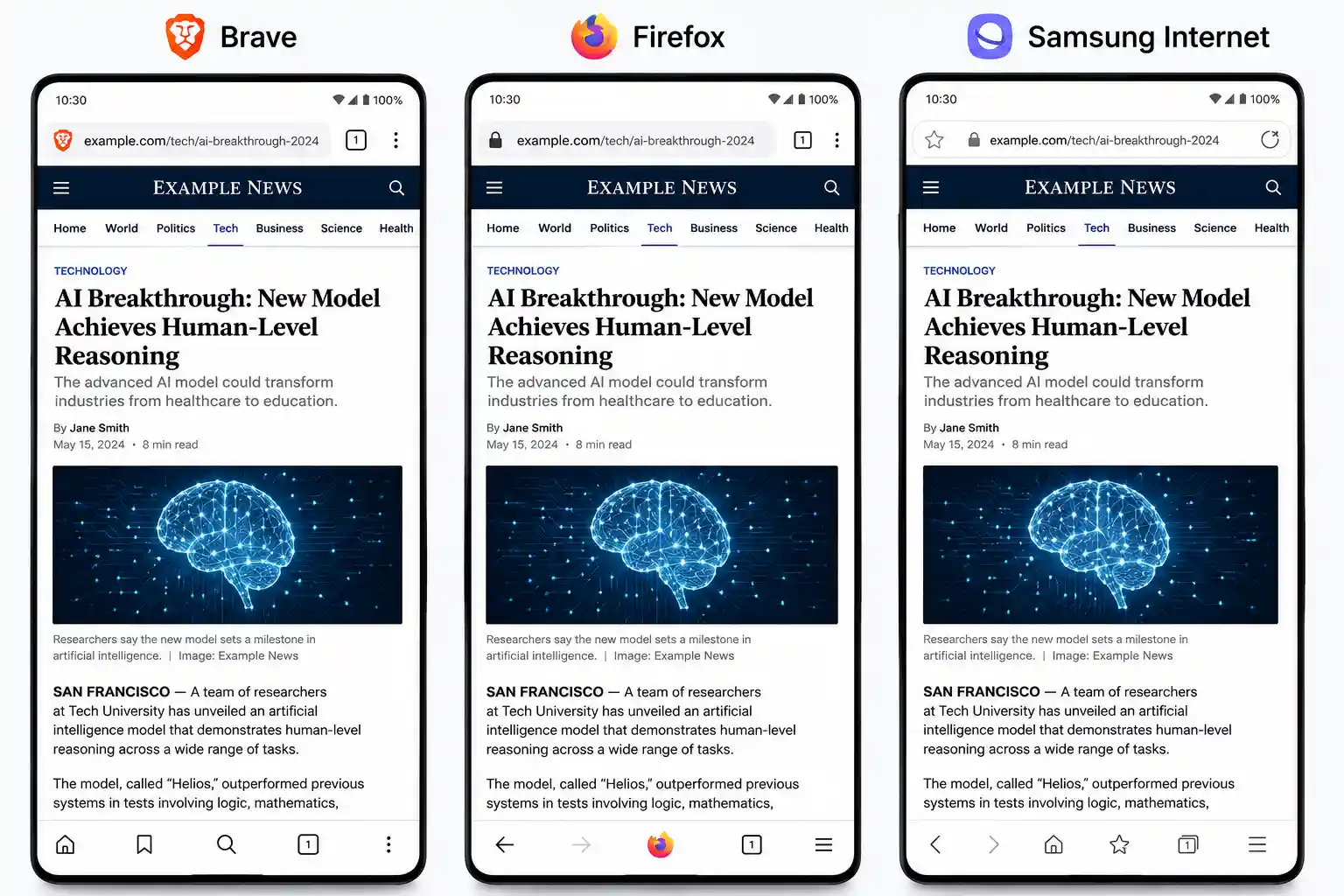
If you prefer a plug-and-play solution focused entirely on enhancing your web browsing, replacing Google Chrome with a privacy-centric alternative is an excellent choice. Several mobile browsers come with integrated content filters that eliminate ads and tracking scripts out of the box.
1. Brave Browser
Brave is a Chromium-based browser, meaning its layout, speed, and settings will feel instantly familiar to Google Chrome users. It features a built-in architecture known as “Brave Shields.”
- Pros: Extremely fast; provides robust, aggressive ad and tracker blocking without needing any configuration; forces HTTPS upgrades; blocks cookies; displays a helpful counter showing exactly how many ads and track scripts have been blocked.
- Cons: The interface includes opt-in cryptocurrency reward systems and customized news feeds that some minimalist users might find unnecessary or cluttered.
2. Firefox for Android
Unlike most mobile browsers, Firefox for Android is built on Mozilla’s independent Gecko engine. Its greatest strength lies in its comprehensive ecosystem support for desktop-grade open-source extensions.
- Pros: Fully supports the installation of uBlock Origin—widely recognized as the absolute best, most efficient content-blocking extension available. Highly customizable and fully open-source.
- Cons: Can occasionally feel slightly less snappy than Chromium-based alternatives on entry-level or older Android hardware.
3. Samsung Internet
Pre-installed on Samsung Galaxy smartphones but available to download for any Android device via the Google Play Store, Samsung Internet is a highly polished, feature-rich browser.
- Pros: Exceptionally smooth scrolling; superb optimization for mobile screens; features a dedicated “Ad blockers” sub-menu that allows users to easily download and integrate official ad-blocking plugins like AdGuard, Adblock Plus, or Disconnect with a single tap.
- Cons: Ad blocking does not work natively out of the box; you must manually download an approved add-on from the menu before ads are filtered.
Method 4: Remove Adware Apps
If your Android device is suffering from intrusive full-screen pop-up ads that manifest outside your browser—such as directly on your home screen, overlaying your phone dialer, or showing up while you are navigating through system settings—you are dealing with an adware infection.
How to Identify Suspicious Applications
Adware apps are malicious actors that hide inside your device. To spot them, navigate to Settings > Apps > See all apps. Keep a close eye out for the following red flags:
- Apps that display a completely blank or transparent icon and have no visible name. Rogue developers use this tactic to make their apps invisible in your launcher drawer.
- Apps that you do not recall installing, particularly random utility tools like third-party flashlights, generic QR code scanners, PDF readers, file managers, or battery saving utilities.
- Apps that show unusually high battery or mobile data usage under your system monitor.
Step-by-Step: Check Device Administrator Apps
Advanced adware applications often secure elevated system privileges to protect themselves from deletion. You must revoke these privileges before you can uninstall them:
- Open your device’s Settings.
- Go to Security & privacy > More security settings (or search for “Device admin apps” in the settings search bar).
- Review the list of apps with administrative access. If an application that has no business being an administrator (like a game or calculator) is enabled, toggle it Off immediately.
Booting into Safe Mode to Uninstall Adware
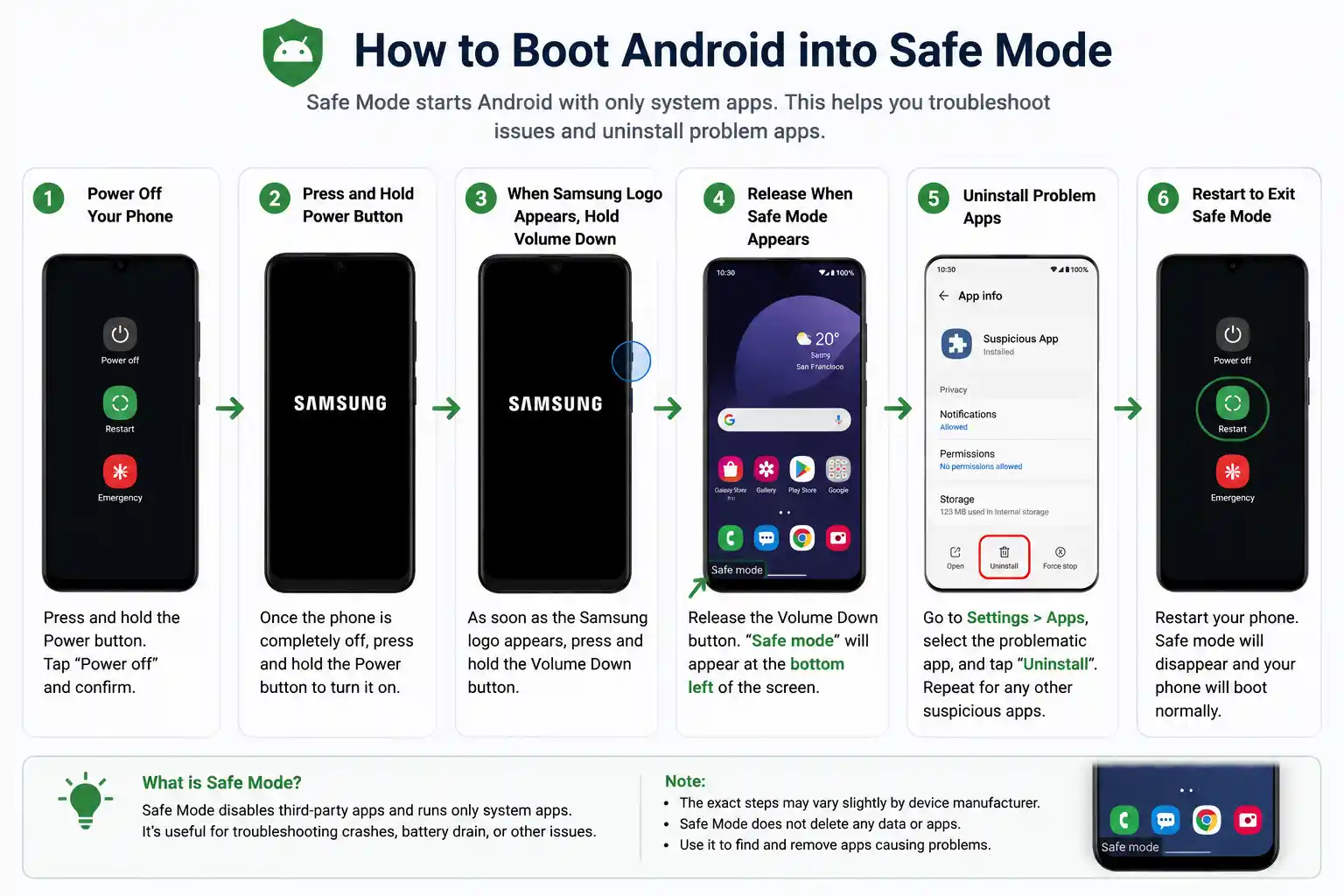
If the adware is aggressively refreshing and throwing full-screen pop-ups every few seconds, it may prevent you from navigating your settings menu. Booting into Safe Mode temporarily disables all third-party applications, rendering the adware inactive and allowing you to safely delete it.
- Press and hold your phone’s physical Power button until the power menu options appear on your screen.
- Press and hold down on either the onscreen Power off or Restart icon for a few seconds.
- A prompt will appear asking if you want to reboot your device into Safe Mode. Tap OK or confirm.
- Your device will reboot, and you will see a “Safe Mode” watermark in the bottom-left corner of the screen.
- Go straight to Settings > Apps > See all apps, locate the malicious application you identified earlier, tap it, and select Uninstall.
- Once finished, simply restart your phone normally to exit Safe Mode.
Method 5: Disable Spam Notifications
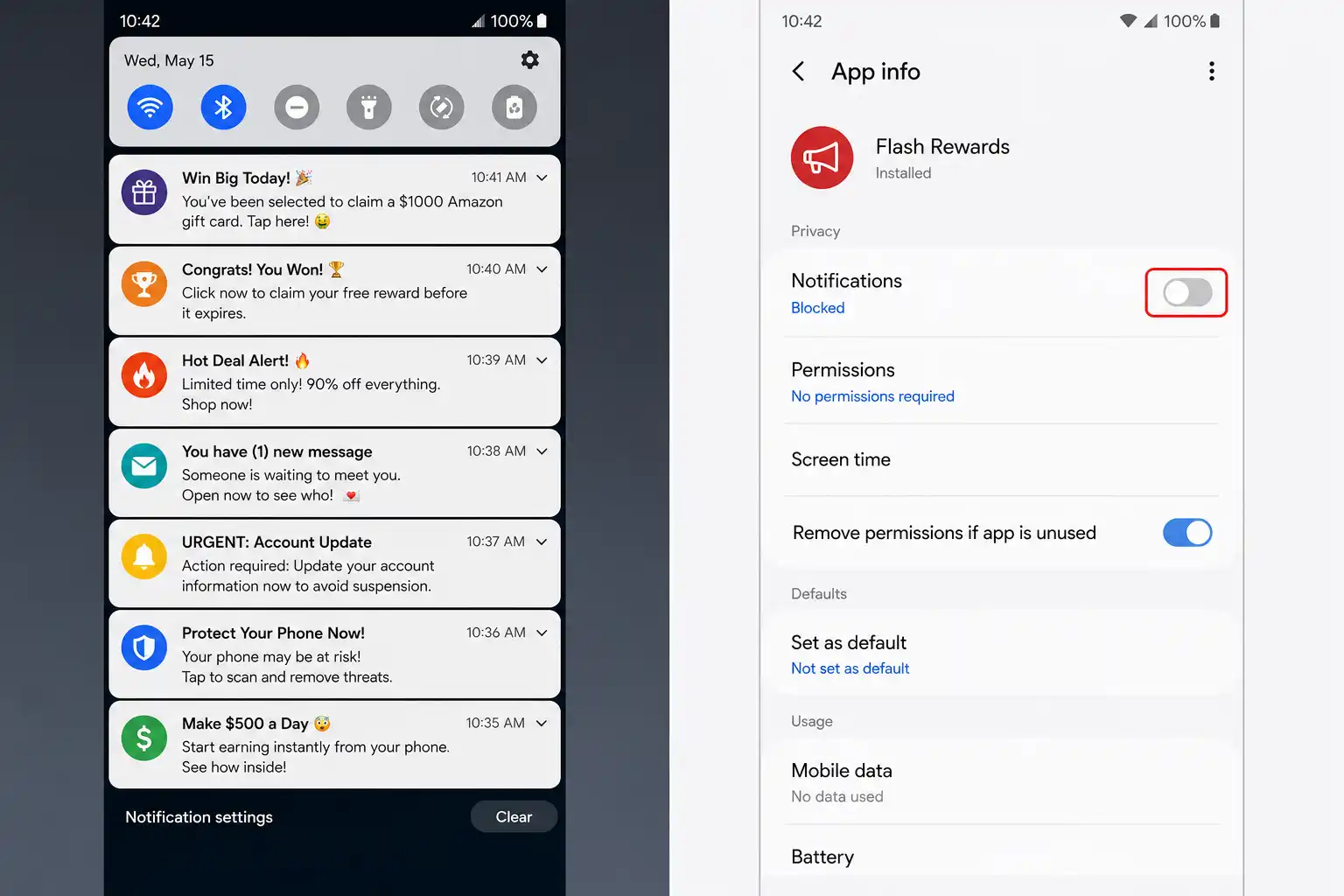
Sometimes, what feels like a system-wide ad or a virus infection is actually just a collection of malicious websites pushing spam directly into your notification tray. This occurs when a user inadvertently clicks “Allow” on a web pop-up that claims you need to accept notifications to view a video, complete a captcha, or read an article.
How to Clear Chrome Web Notifications
You can easily revoke permissions for individual websites or turn off web notifications entirely:
- Open Google Chrome, tap the three dots, and enter Settings.
- Tap on Notifications.
- Scroll down to the Sites section. Here you will see a detailed list of every website that has permission to send notifications to your device.
- To stop a specific site from spamming you, toggle the switch next to its domain name to Off. Alternatively, you can toggle the master switch for “All ‘Sites’ notifications” off to permanently stop websites from pinging your phone.
Disabling Standard App Notification Spam
Free mobile games and ad-supported applications often push marketing promotions, item discounts, and annoying reminders into your notification tray. To shut these down:
- The next time a spam notification appears, long-press on the notification card directly within your notification shade.
- Tap Turn off notifications or tap the Settings (Gear) icon that appears.
- Toggle off the notification channel responsible for marketing or promotions, or disable notifications for that app entirely.
Best Ad Blockers for Android
For power users who want maximum control, custom filters, and full security auditing, installing a dedicated ad-blocking application is the ultimate solution. The table below provides an analytical comparison of the three most popular, trusted open-source and independent ad blockers available for Android today:
| Ad Blocker | Root Required? | Blocks Browser Ads? | Blocks App Ads? | Battery Impact? |
|---|---|---|---|---|
| AdGuard (Premium) | No | Yes | Yes | Low to Medium |
| Blokada (v5/v6) | No | Yes | Yes | Low |
| DNS66 | No | Yes | Yes | Very Low |
Deep Dive into the Top Choices
- AdGuard for Android: This is a highly advanced standalone app (downloaded via AdGuard’s official website, as Google does not allow system-wide ad blockers on the Play Store). It sets up a local VPN connection on your device to filter all incoming traffic. It offers dynamic cosmetic page filtering, making sure web pages collapse properly without leaving holes where ads used to be.
- Blokada: An incredibly popular open-source project. Like AdGuard, it uses a local VPN loopback interface to block ad hostnames via DNS. Blokada is highly lightweight, community-driven, and offers a straightforward user interface that allows you to easily subscribe to various host lists (like Energized or StevenBlack).
- DNS66: Available via F-Droid (the repository for free and open-source Android software), DNS66 uses a local VPN connection to establish a non-proxy DNS server. It is incredibly lightweight and consumes virtually zero battery because it only processes DNS requests during the initial connection phase rather than filtering every active data packet.
Frequently Asked Questions (FAQ)
Is ad blocking safe?
Yes, ad blocking is completely safe provided you use reputable, verified methods. Utilizing your device’s built-in Private DNS settings or downloading trusted, open-source browsers like Brave and Firefox poses no risk to your device. Avoid downloading unverified ad-blocking utilities from unknown online forums or suspicious APK hosting sites, as they may contain malware.
Does Android have a built-in ad blocker?
Android does not feature a single global, native switch to turn off all ads, primarily because Google’s core business model relies on advertising. However, Android provides native framework tools like the Private DNS settings and Google Chrome’s built-in pop-up and intrusive ad blocking filters to help users protect their browsing experience.
Can I block ads without installing apps?
Yes. The Private DNS method outlined in Method 2 allows you to achieve system-wide ad blocking across both web browsers and mobile apps without downloading a single byte of additional software. It utilizes native network configurations built right into the Android settings app.
Will ad blockers improve battery life?
Absolutely. Ad blockers stop resource-heavy elements—such as auto-playing video banners, heavy JavaScript tracking loops, and animated web scripts—from downloading and executing. By minimizing CPU and GPU workloads and decreasing mobile data transmission, ad blockers noticeably extend daily battery longevity.
Are ad blockers legal?
Yes, using ad blockers is completely legal. Courts and regulatory bodies have repeatedly affirmed that consumers have a legal right to control what content, scripts, and data are allowed to be downloaded, processed, and displayed on their personal electronic devices and network connections.
Conclusion
Taking control of your Android device’s digital environment is essential for maintaining privacy, optimizing battery life, and ensuring high-speed performance. There is no single one-size-fits-all solution, but combinations of these safe and effective methods will help you build an incredibly robust defense against intrusive ads:
- For the average user looking for a seamless, set-it-and-forget-it option, configuring your phone with a Private DNS provider (
dns.adguard-dns.com) is undeniably the best choice. It requires no app downloads, consumes zero extra battery, and provides instant, system-wide protection. - For web power users who spend hours reading articles or watching online media, switching your daily browser to Brave or using Firefox paired with the uBlock Origin extension delivers an elite, desktop-tier web experience free of visual clutter.
- If you are dealing with aggressive, full-screen home screen popups, immediately execute a security audit using Safe Mode to wipe out rogue adware apps from your system.
Implement these adjustments today to enjoy a faster, safer, and completely revitalized Android experience.